
DMX Lighting Controller (or how to easily adjust the lights!)
Turning on the lights, and the DMX controller
Use the big colourful buttons on the AV Rack to turn on the DMX stage lights and the rack itself (which powers up the lighting controller).
Some fans should come on, and the 'moving heads' will move for a second while they calibrate.
Make sure that the "DMX Lights - Select Input:" switch on top of the AV Rack is set to input 'X = Eurolite'.
Using the Eurolite DMX lighting controller to operate the lights
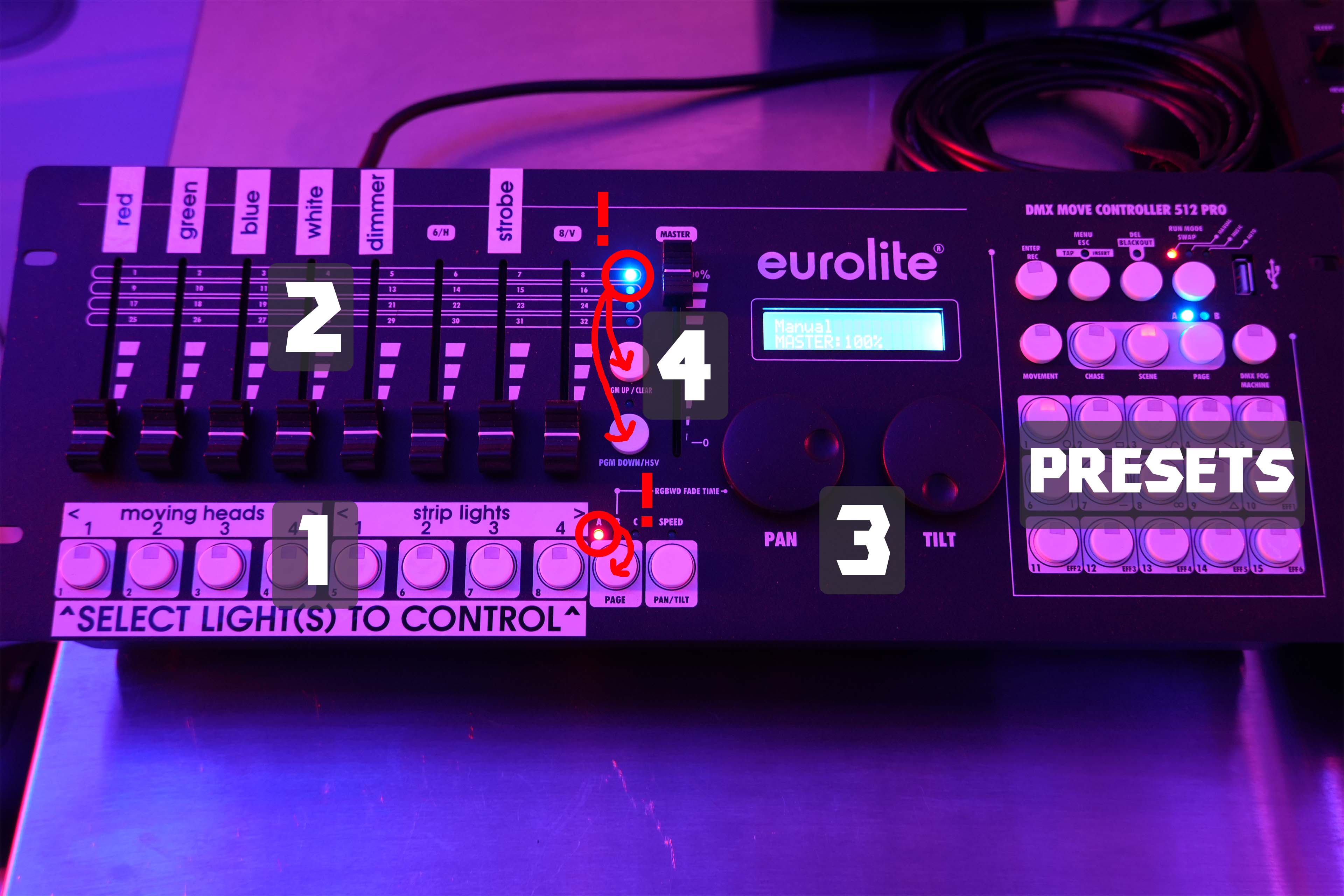
This simple little lighting desk gives full control over all the (permanently mounted) stage lights in the lab.
Feel free to turn off the main room lighting and adjust the stage lights using this DMX lighting controller.
To change colours:
(1) Toggle the light(s) fixtures that you want to control using the bottom row of buttons.
(2) Adjust the faders above to change Red, Green, Blue, White, Strobe, etc.
Don't forget to 'open' the dimmer, otherwise you will not see anything!
(3) Turn the pan and tilt dials to move any selected moving heads
(4) The main dimmer controls everything, so make sure it is open if you do not see anything!
The strobe and dimmer faders should be open, too.
(5) ... repeat for any of the other lights you want to adjust.
That's it!
There are a few built-in colour presets, too: see the 15-button section located on the right.
Not all of those presets are assigned at the moment.
If the lights are turned on, but nothing happens:
~ make sure that 'PAGE' (the red LED) is set to 'A'
~ make sure the 'PGM' (blue LED next to the faders) is set to 1-8, the top row.
~ make sure the dimmers and strobe are all open
If weird things happen:
~ make sure none of the presets are toggled on by mistake.
~ talk to a technician!