
Sound System
Dark Lab Sound System
How to plug in?
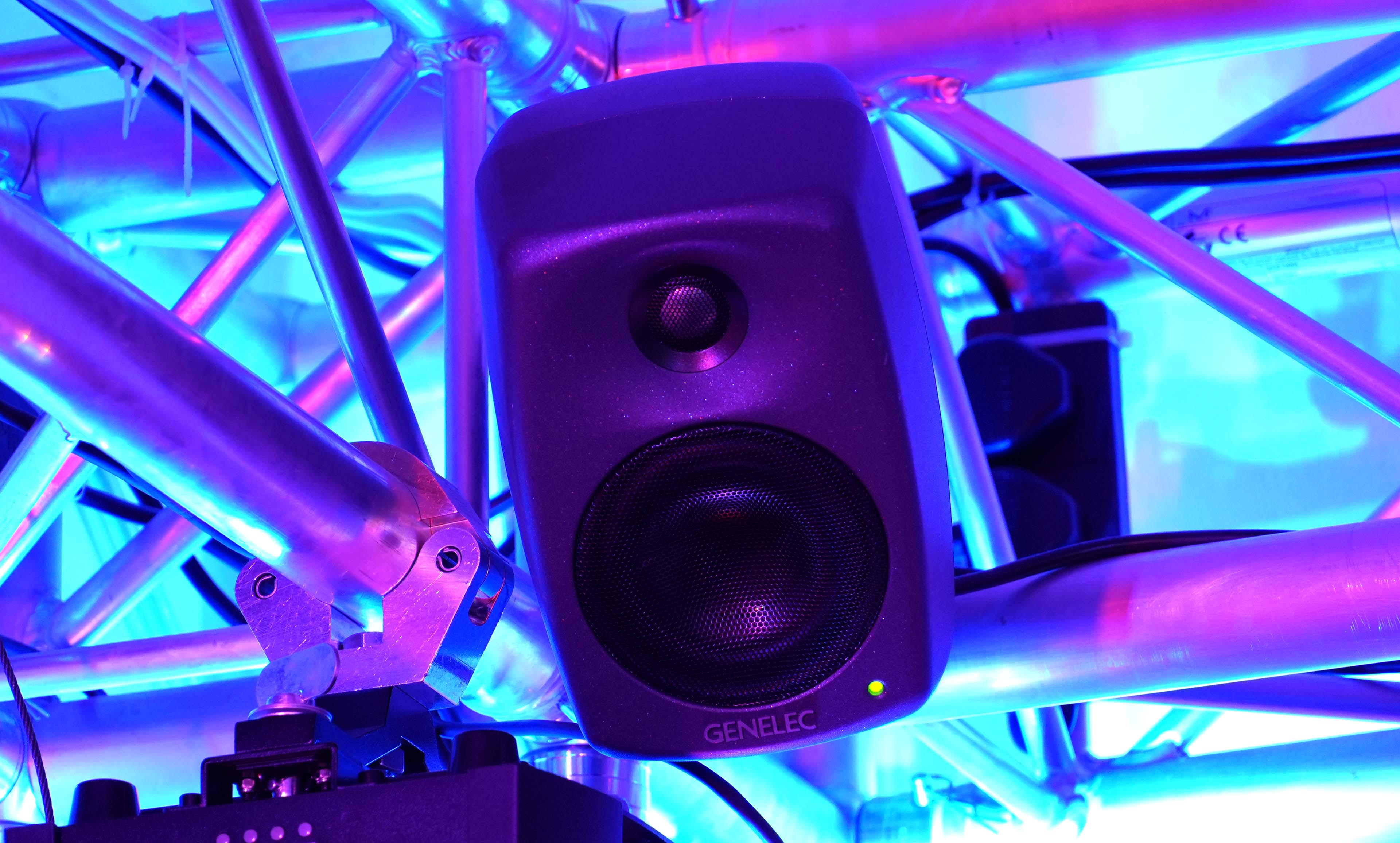
We currently have 4four speakers and two subwoofers set up. This gives us either left / right stereo in both Area 1up and Areaready 2,to fourplug channelinto.
Using surroundthe fromswitches eitherpictured area's PCs, or stereo inputs doubled up into all four speakers.
Thebelow, audio can be routed to the speakers from:in the following ways:
Four channel:channel surround sound from:
~— The computer in Area 1 computer(left; (PC1)
~— The computer in Area 2 computer(right; (PC2), or use the USB-C cable to the sound interface (markedlabeled as 'speakers')
Stereo (copied into 4 channel):
~— The DJ controller (sadly, we currently do not have this available)
~— The Bluetooth receiver
~— ATwo XLR audio cables (with provided adapter cables for 3.5mm mini-jackheadphone cablejack, (RCA or other6.5mm cableJack if needed)connectors)
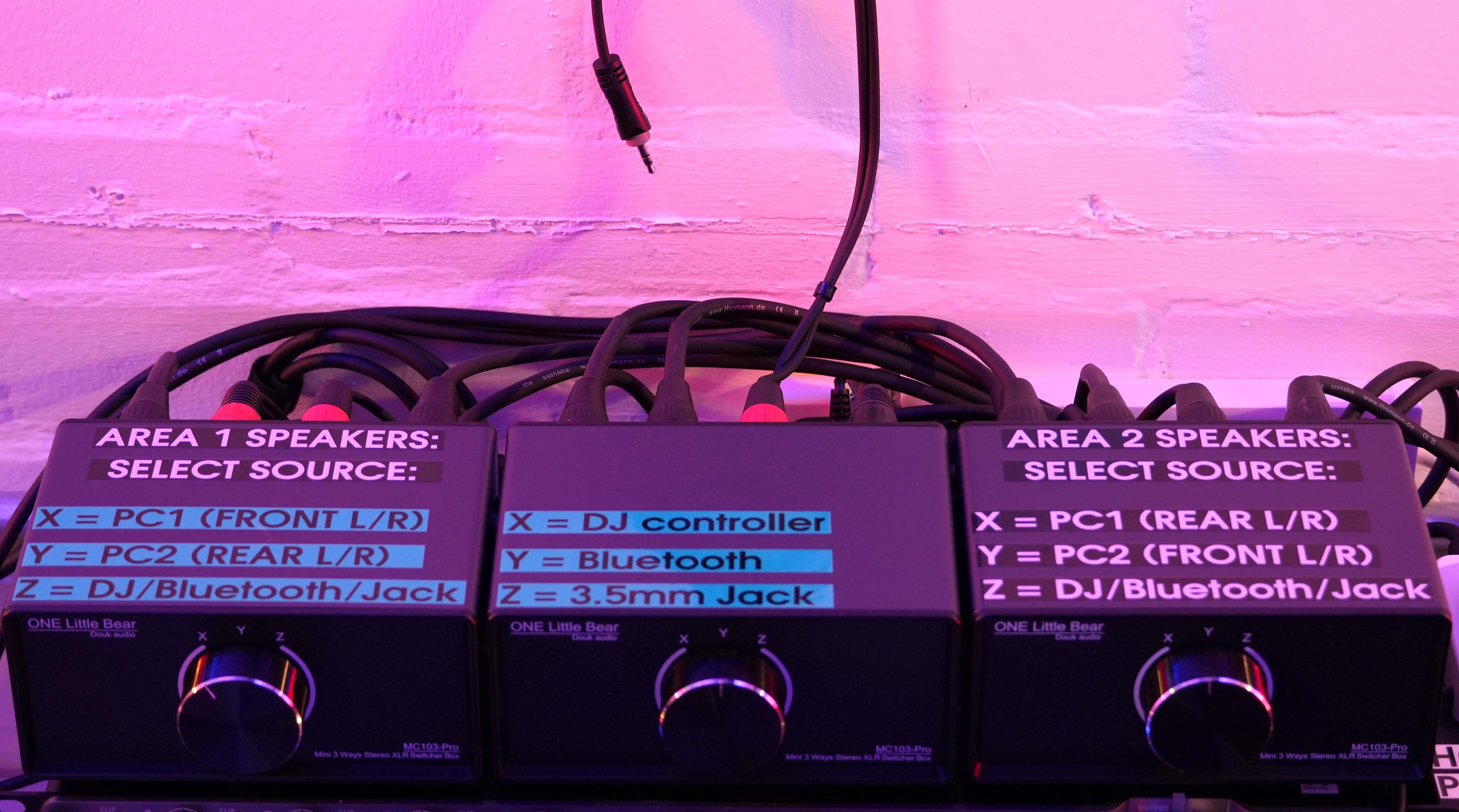
Use these switches to choose which sound source(s) you want to send to which set of speakers:
You can find them in 'The Rack'.
Connecting your laptop (or anything else)
There are three ways to get sound from your own laptop (or other device) to play over the Dark Lab's speakers:
- USB-C sound interface (four channel)
- Bluetooth (stereo)
- 3.5mm
minimini-jack (headphone jack) cable (stereo). Plug the provided adapter cable into the two XLR cables sticking out of the rack cabinet to connect.
If you need anything else, don't hesitate to ask a technician!
(1) USB-C
The sound card on the Area 2 wall should work on any laptop without requiring any drivers. Feel free to plug in the USB-C cable!
It is connected to all four speaker channels, and labeled as 'PC2' on the speaker source selector boxes.
By default, normal stereo sound will come out of the speakers in Area 2 if you choose 'PC2 (Front L/R)'.
In order to get four-channel sound working, you might need to configure your computer for surround sound.
In Windows, you can open 'Sound Settings', then click 'More Sound Settings'. A little window will pop up, showing all your audio devices. Right-click on 'Speakers (Sound Blaster X4)' and choose 'Configure Speakers'. Then choose 5.1 surround -> rear pair only -> all speakers full range.
You're then ready to play 4-channel surround sound from videos, games or whatever!


(2) Bluetooth
~— Set the speaker source selector boxes to 'Bluetooth'Bluetooth (on the middle one), and Area 1, 2 or all speakers onset the other two.two switches to 'Z = DJ / BT / Cable'.
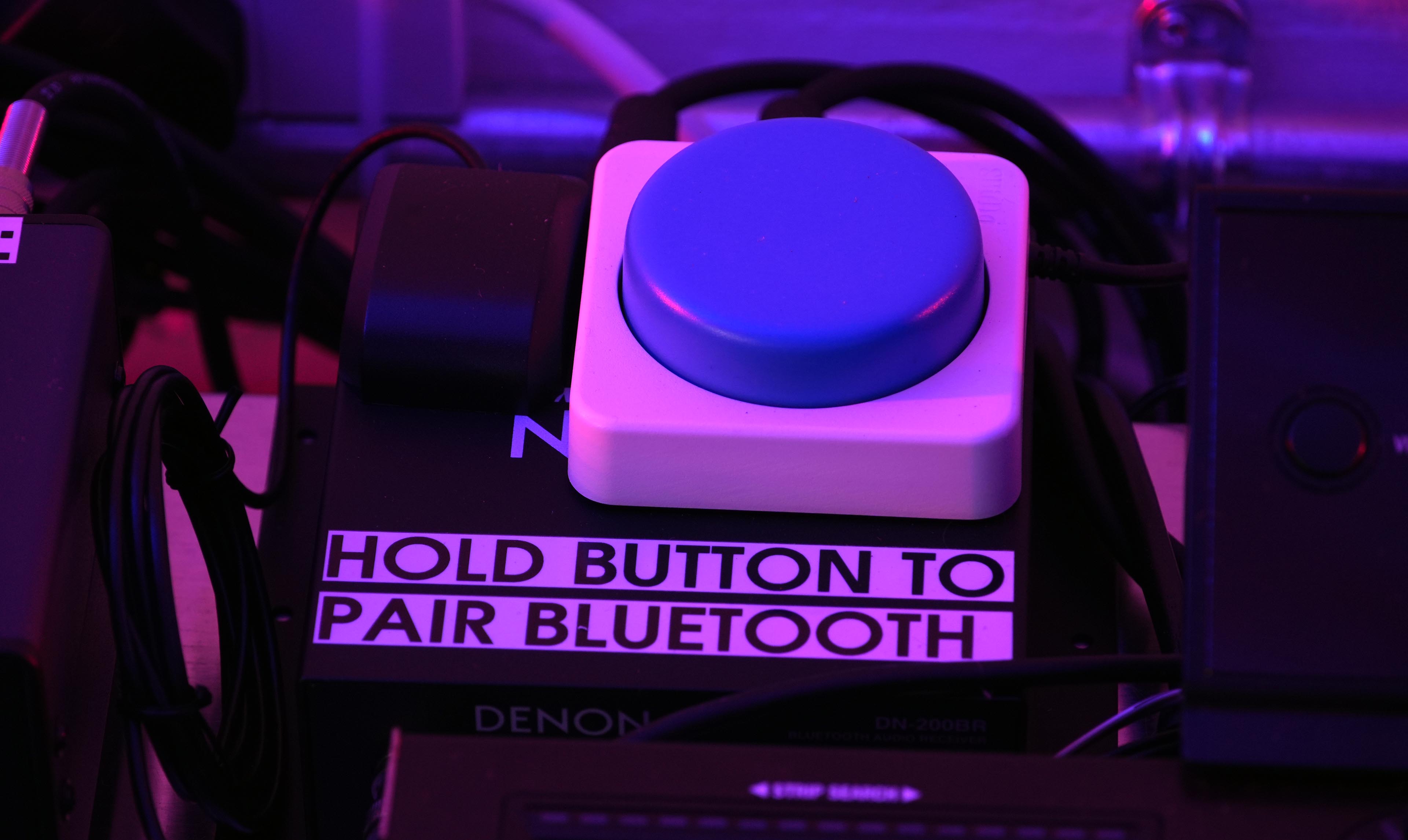
~— Press and hold the Big Blue Button to put theour Bluetooth receiver into pairing mode:mode, then pair your phone or laptop to it. The receiver should appear as 'DN-200BR'.
Now you should be good to go!
(3) Audio cable
~— JustFirst TURN OFF the speakers, and turn down your device's volume first (!)
~— Plug ininto the cabletwo thatcables shouldhanging beout of the front of the Rack. Below are adapter cables on a little hook on the wall, right where the speaker source switch boxes are.hooks.
~— Select the right input and speakers on the speaker source selector boxes.
We can provide different cables or adapters if needed.
What speakers and equipment do we have?
Currently, therewe arehave:
four— 2x Genelec 8040B studio monitors
— 2x Genelec 8020D near-field monitors
and— two2x Genelec 7040A subwoofers.
This gives each projection area a stereo pair + one sub.
Specsor here:four channels with two subs.
More channels will likely be added in the near future.
