
Vinyl Cutter
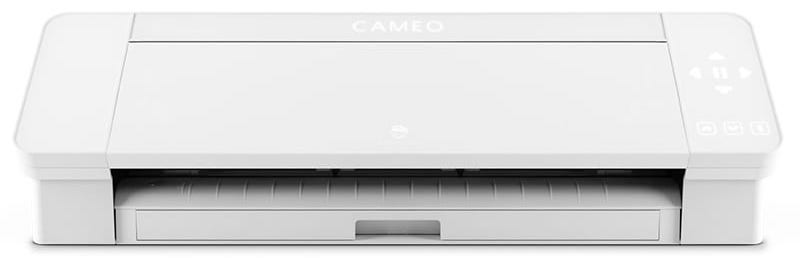
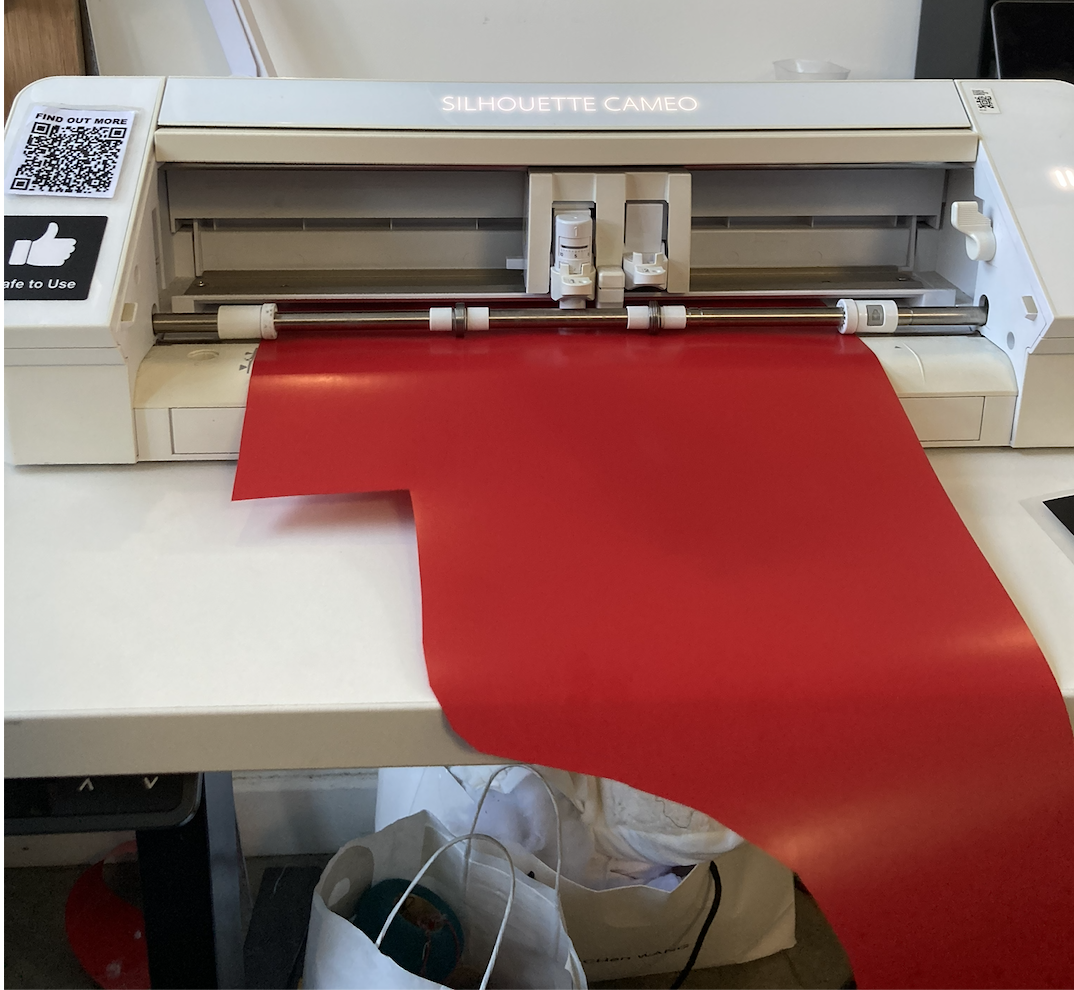
We have a Silhouette Cameo 4 vinyl cuttercutter, which is used for cutting vinyl that can alsobe operatestuck asto walls and windows, or to press onto t-shirts using the heat press. This machine works by dragging a pensmall plotterknife (although inacross a morepiece limitedof fashion).vinyl, which is moved through the machine on rollers. It cuts out one colour at a time: to make designs using several colours requires some pre-planning and careful alignment.
There is no cost to using the vinyl cutter,cutter. bladesBlades and a selection of vinyl colours are provided, with matt black and matt white being kept in stock most of the time.
TheIf machineyou would like to use a lot of vinyl or a specific colour, please talk to Agnes, Rosie or Pete, and they can behelp usedyou byorder creatingyour a vector drawing in software like Adobe Illustrator, CorelDRAW, Affinity Designer, or Inkscape. The file is then saved as a .dxf format file which can be loaded with the free Silhouette Studio software.
There is also a license for Silhouette CONNECT software available to enable direct cutting from Adobe Illustrator or CorelDRAW if necessary.own.
 |
No induction required to use this equipment. However if you would like to be taught how to use it, please contact Rosie or Agnes. |
Usage
The machine can be used by creating a vector drawing and uploading it to the machine through a free piece of software called Silhouette Studio. This is similar to the kind of file you would use on the laser cutter -- a set of lines that tell the machine where you want to make cuts.
Making a cuttable drawing
Lots of software exists that can make vector files. Most CCI students use one of the following, but any will do, and will produce similar results:
- Adobe Illustrator (this costs a subscription fee, though it is cheaper for UAL students)
- Inkscape (free)
- Figma (free, with paid features)
Silhouette studio imports files in a DXF format: Illustrator will allow you to export files directly to this format. If you are using software like Inkscape or Figma to create your files, you will need to export to SVG (which is a more common vector format), and then convert to DXF, using an online SVG to DXF converter.
AI Generated files: In the past, students have had lots of issues with files generated using AI tools like Canva. These tools do not always do a good job of creating vector files, and can create some weird issues. It's almost always quicker to try and make files yourself, and software like Inkscape is free to use. If you've got questions, please ask the technicians and they can help you!
If you'd like to turn a pixel-based image into a vector, this can be done in both Illustrator and Inkscape! See this tutorial for more details.
We also have a license for Silhouette CONNECT software available to enable direct cutting from Adobe Illustrator or CorelDRAW if necessary.