
Workshop: Using Arduino with p5.embroider
This is a write up of part of the p5.embroider.js tech skills workshop explaining how to use inputs from Arduino to alter a p5.embroider.js sketch. It shows the example of using an LDR to vary the radius of a circle.
There are a few steps to this process:
1. Circuit
First, you need to build your circuit. This is the same as you would build any Arduino circuit and can use anything that will give you a reading such as potentiometer, LDR, button, switch, etc. Below is the circuit for an LDR.
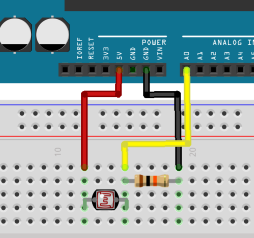
2. Arduino Code
The setup for the arduino code is nice and simple, we just need to read our value then print it to serial. Make sure you are using Serial.println() so each value prints on a new line.
void setup() {
  Serial.begin(9600);
}


void loop() {
  int val = analogRead(A0);

  Serial.println(val);
  delay(100);
}
If we have multiple readings, we just need to print each one, except the last, with Serial.print() followed by a comma. The last value is printed with Serial.println() to start a new line for the next reading.
void setup() {
  Serial.begin(9600);
}


void loop() {
  int val1 = analogRead(A0);
  int val2 = analogRead(A1);

  Serial.print(val1);
  Serial.print(",");
  Serial.println(val2);
  delay(100);
}
Once you have uploaded this, make sure that the Serial Monitor is closed. If left open, p5 won't be able to read the data. Also, make sure that the frequency used in Serial.begin()is 9600, as this is what p5 uses.
3. p5 Code
index.html
For this sketch, we will be using the library p5.webserial to retrieve the data from the Arduino alongside p5.embroider.js. To be able to use these libraries, we must include the following lines with the head of the index.html file.
<script src="https://unpkg.com/p5-webserial@0.1.1/build/p5.webserial.js"></script>
<script src="https://unpkg.com/p5.embroider/lib/p5.embroider.js"></script>
sketch.js
Below is a template sketch.js for using serial data with p5.embroider.js.
// variable to hold an instance of the p5.webserial library:
const serial = new p5.WebSerial();

// HTML button object:
let portButton;
let inData;                   // for incoming serial data
let outByte = 0;             // for outgoing data
let vals;
let dataCount = 0;

let _drawMode = "p5";
let stitchWidth;

function setup() {
  createCanvas(400, 400);          // make the canvas

  //Serial setup

  // check to see if serial is available:
  if (!navigator.serial) {
    alert("WebSerial is not supported in this browser. Try Chrome or MS Edge.");
  }
  // if serial is available, add connect/disconnect listeners:
  navigator.serial.addEventListener("connect", portConnect);
  navigator.serial.addEventListener("disconnect", portDisconnect);

  serial.getPorts(); // check for any ports that are available:
  serial.on("noport", makePortButton); // if there's no port chosen, choose one:
  serial.on("portavailable", openPort); // open whatever port is available:
  serial.on("requesterror", portError); // handle serial errors:
  serial.on("data", serialEvent);  // handle any incoming serial data:
  serial.on("close", makePortButton);


  //p5.embroider setup

  let drawModeStitchButton = createButton("Draw Mode: Stitch");
  drawModeStitchButton.mousePressed(() => {
    _drawMode = "stitch";
    redraw();
  });

  let drawModeLineButton = createButton("Draw Mode: Realistic");
  drawModeLineButton.mousePressed(() => {
    _drawMode = "realistic";
    redraw();
  });

  let drawModeP5Button = createButton("Draw Mode: p5");
  drawModeP5Button.mousePressed(() => {
    _drawMode = "p5";
    redraw();
  });

  let exportDstButton = createButton("Export DST");
  exportDstButton.mousePressed(() => {
    exportEmbroidery("colorExample.dst");
  });
  exportDstButton.position(0, height + 60);

  let exportGcodeButton = createButton("Export Gcode");
  exportGcodeButton.mousePressed(() => {
    exportGcode("colorExample.gcode");
  });
  exportGcodeButton.position(90, height + 60);
  //noLoop();
}

function draw() {
  background(0);
  stitchWidth = 7;
  stroke(255, 255, 255);
  noFill();
  setDrawMode(_drawMode);

  if(typeof(vals[0]) != "undefined" && !isNaN(vals[0])){
      beginRecord(this);

      strokeWeight(stitchWidth);
      setStitch(0.2, 0.8, 10);
      setStrokeMode("zigzag");


      //p5 sketch goes below!!
      ellipse(pixelToMm(200),pixelToMm(200),abs(vals[0]),abs(vals[1]));

      endRecord();
    }
  }


// read any incoming data as a string
// (assumes a newline at the end of it):
function serialEvent() {
  inData = serial.readLine();
  if(inData != null){
    inData = trim(inData);
    vals = int(splitTokens(inData, ","));
  }
}

// if there's no port selected,
// make a port select button appear:
function makePortButton() {
  // create and position a port chooser button:
  portButton = createButton("choose port");
  portButton.position(10, 10);
  // give the port button a mousepressed handler:
  portButton.mousePressed(choosePort);
}

// make the port selector window appear:
function choosePort() {
  if (portButton) portButton.show();
  serial.requestPort();
}

// open the selected port, and make the port
// button invisible:
function openPort() {
  // wait for the serial.open promise to return,
  // then call the initiateSerial function
  serial.open().then(initiateSerial);

  // once the port opens, let the user know:
  function initiateSerial() {
    console.log("port open");
  }
  // hide the port button once a port is chosen:
  if (portButton) portButton.hide();
}

// pop up an alert if there's a port error:
function portError(err) {
  alert("Serial port error: " + err);
}

// try to connect if a new serial port
// gets added (i.e. plugged in via USB):
function portConnect() {
  console.log("port connected");
  serial.getPorts();
}

// if a port is disconnected:
function portDisconnect() {
  serial.close();
  console.log("port disconnected");
}

function closePort() {
  serial.close();
}
Let's take a closer look at some specific parts, first the function serialEvent();
function serialEvent() {
  inData = serial.readLine();
  if(inData != null){
    inData = trim(inData);
    vals = int(splitTokens(inData, ","));  //splits up the data at each comma
  }
}
This function is called each time a new piece of data is sent from the serial monitor. It then splits the data at the commas and stores them in an array called vals. This data can then be used within the sketch to influence certain variables.
Let's look at the draw() function.
function draw() {
  background(0);
  stitchWidth = 7;
  stroke(255, 255, 255);
  noFill();
  setDrawMode(_drawMode);

  if(typeof(vals[0]) != "undefined" && !isNaN(vals[0])){ //make sure data is being received
    beginRecord(this);

    strokeWeight(stitchWidth);
    setStitch(0.2, 0.8, 10);
    setStrokeMode("zigzag");


    //p5 sketch goes below!!
    ellipse(pixelToMm(200),pixelToMm(200),abs(vals[0]),abs(vals[1]));

    trimThread(); //trims threads between colours
    endRecord();
  }
}
The beginRecord(this) function starts the p5.embroider recording. Anything drawn inside of this will be included so this is where we want to put our p5 sketch.