
Keyboard secrets (Mac)
Macbook keyboard
For keyboard secrets we have a separate page for keyboards for Windows operating systems, since they behave a tiny bit different. For Macbooks, they can look different depending on the model of your machine, as well as the language you choose for it.
This page follows the English British version. If you often have to change the language of your keyboard, you can have it as a shortcut on the upper menu of your computer.
Add a different language to my keyboard:
-
Go to System Settings
-
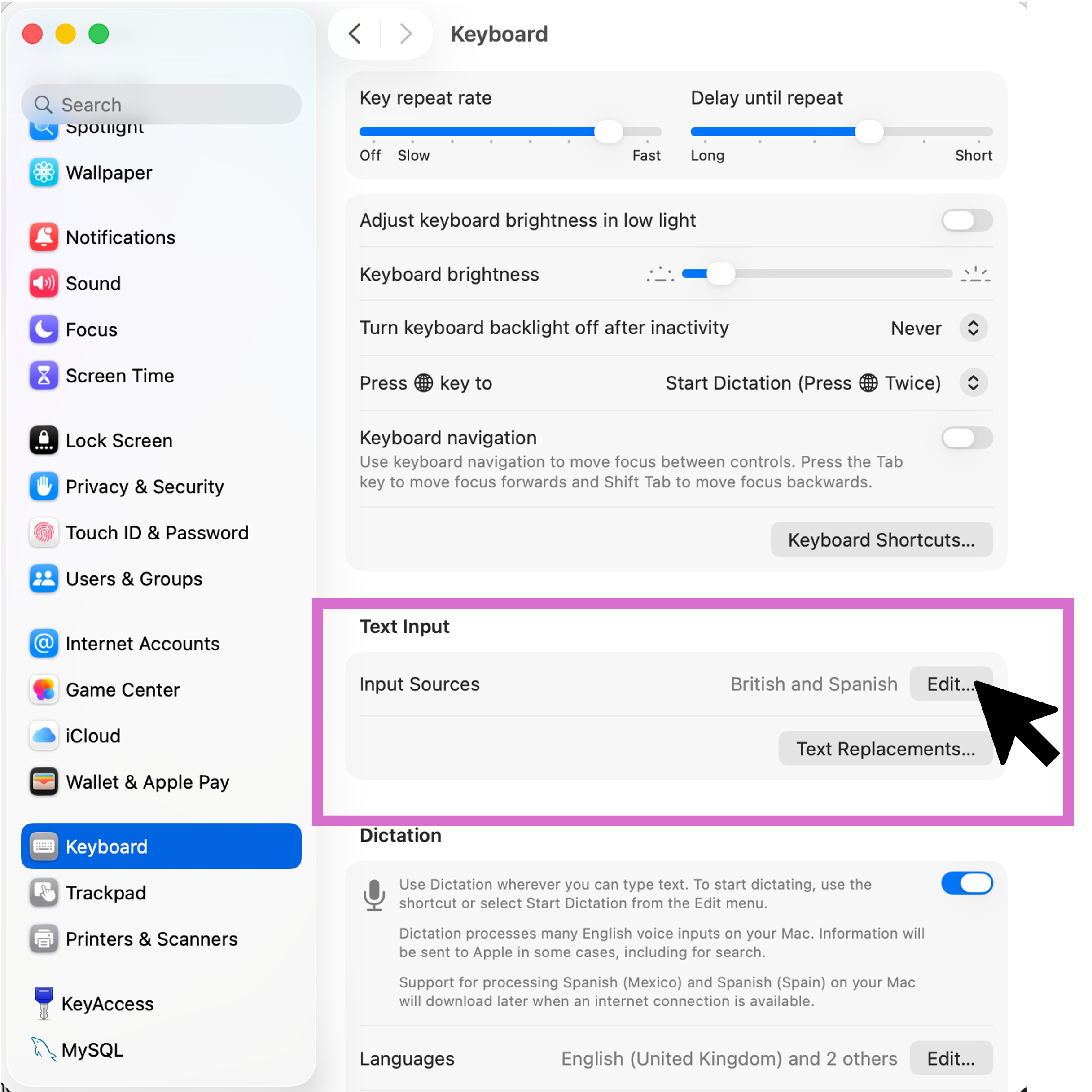
Find the Keyboard option on the left side menu, or type it on the search bar. Scroll down and select on the "Text Input" option the "Edit..." button.
-
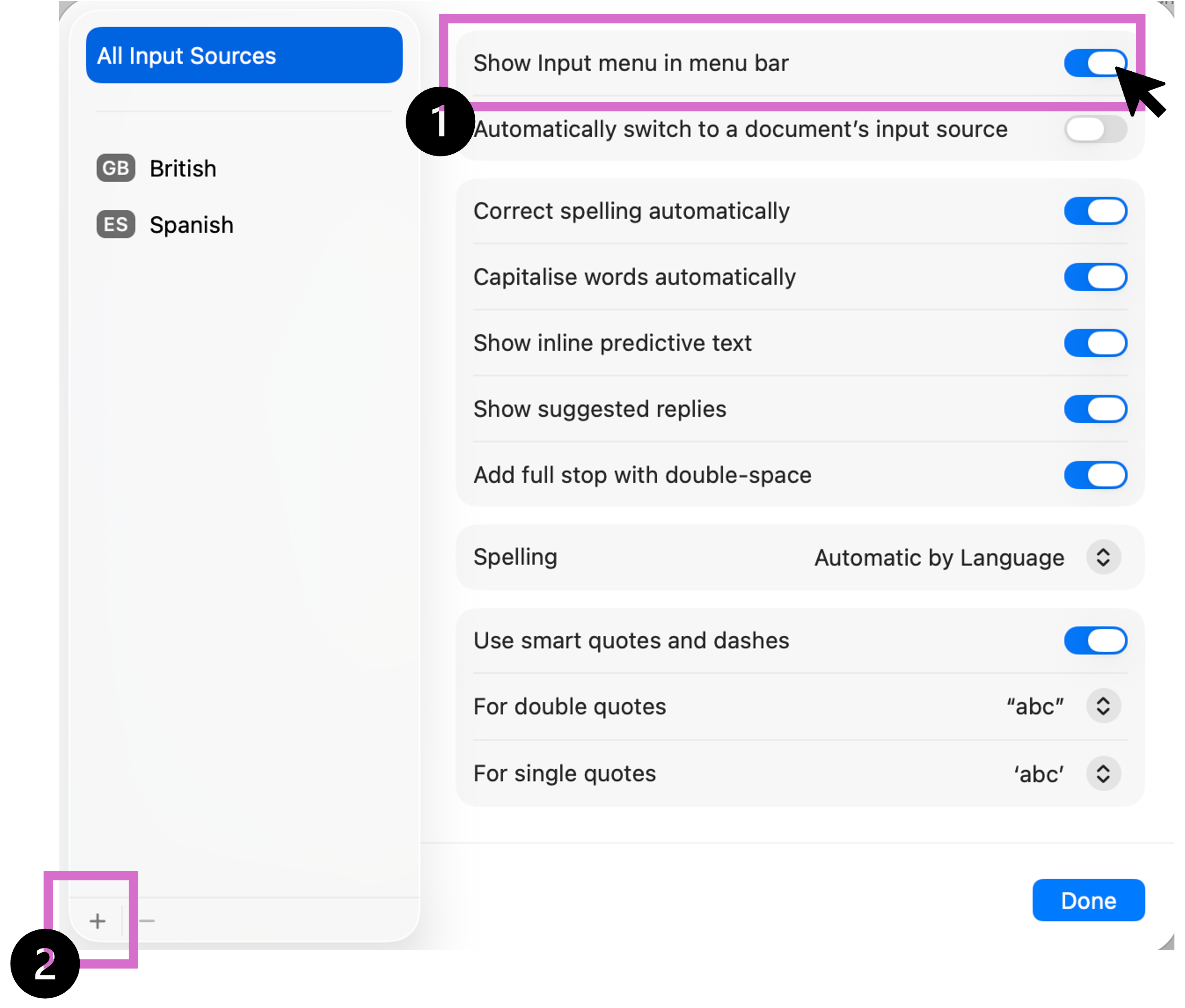
On the next window, you will se all the input sources you have at the moment. In this example I have a British and Spanish keyboard. First, if it's not already enabled, make sure that the "Show Input menu in menu bar" is on. That way, it will be easier access to change. Once active, you will be able to see it on the menu bar on the upper side of your screen (usually right next to the battery status). Next we go to the lower left corner of the screen and select the "+" sign.
-
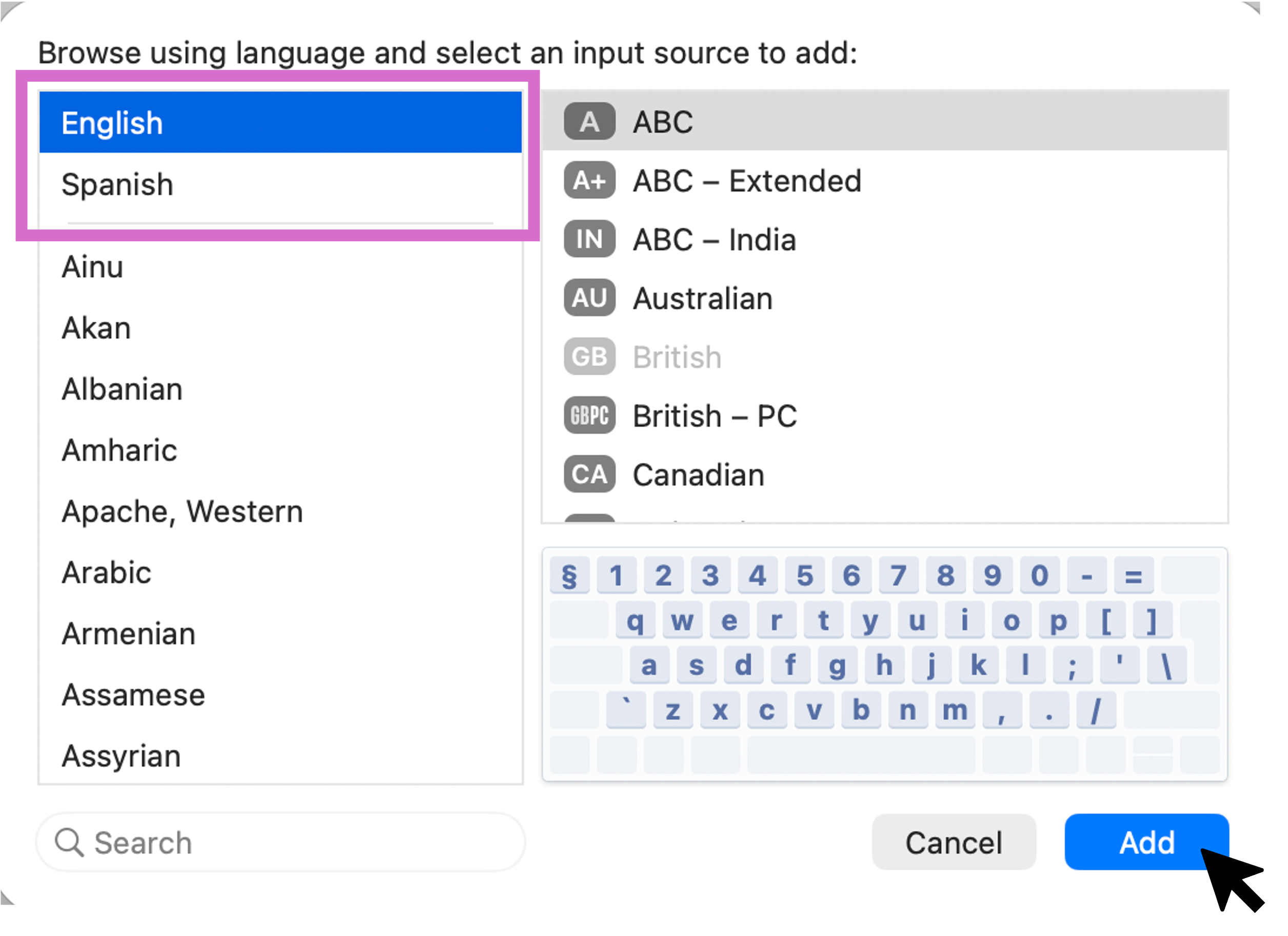
In the next window, you can browse all the languages available and select the one you need. You should see the ones already on your input source in the upper left corner. Once you select the language, the keyboard image is going to change to show you the different keys. Select as many as you need making sure to clic "Add" for each one.
Once you have completed all of those steps, you should be able to see all of the langauges you added on your main menu bar. If you clic on it, you can easily change back and forth between languages.
When you change the language on your keyboard, the place of some elements are going to change. For example, the simbols next to the numbers are more likely to change places.
If you wish to see how the layout of your keyboard changed when you change languages, you can go to the menu bar on the top right corner of your screen and look for the language icon.
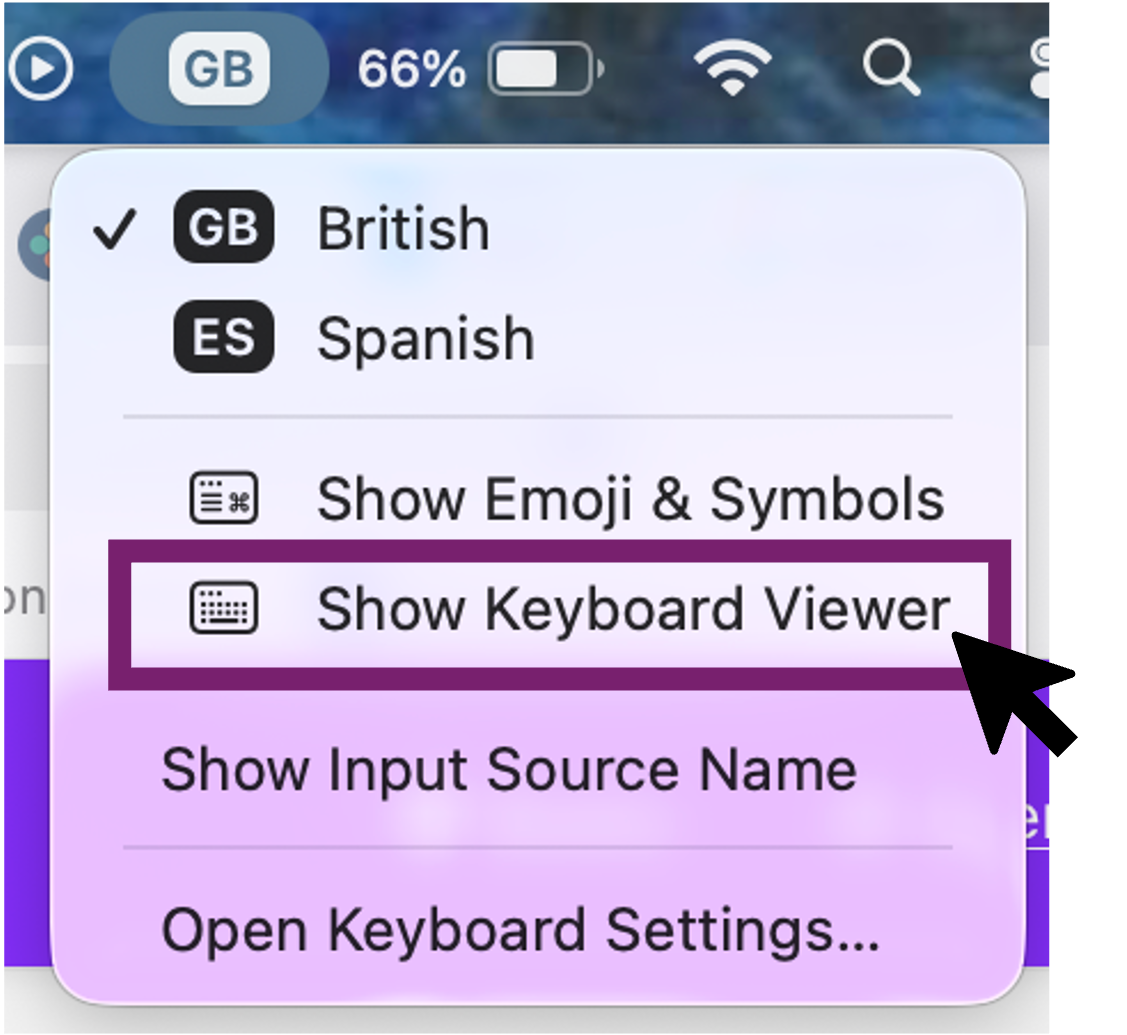
Once you select that, you will see something like this:
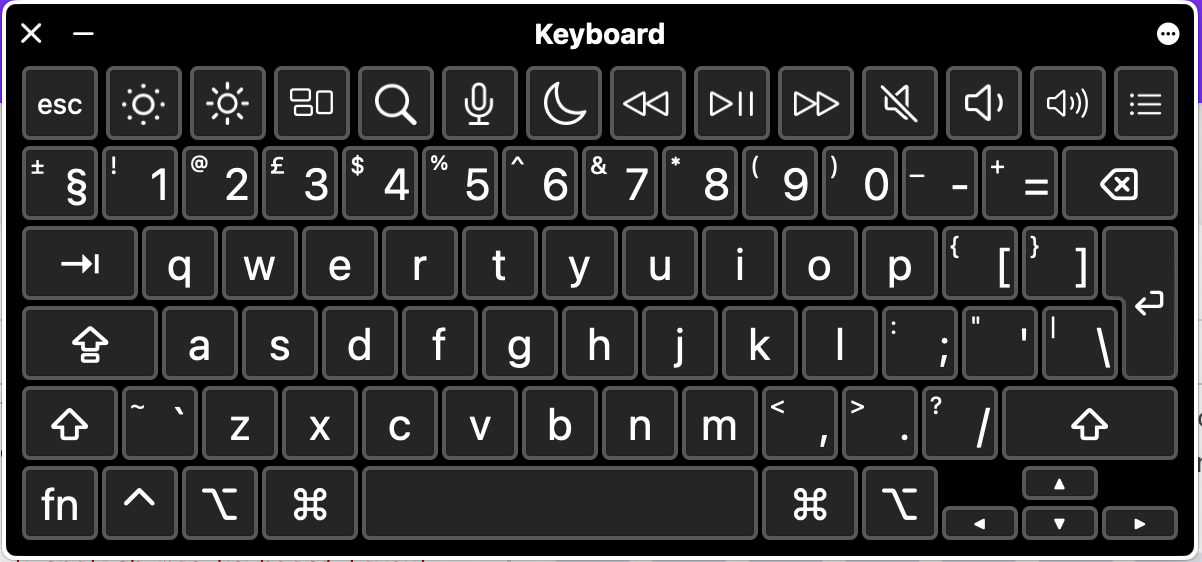
From here, you can use both the keyboard on your screen as well as your normal keyboard. If you want to see the special characters, you can use the next combination of keys:
Command Key (Cmd) ⌘
The Command key is the main key used for the most common shortcuts in your keyboard. In earlier generations of Mac, this key had the apple logo in it, now it has its unique looping symbol called the Bowen knot.
NOTE: This key is often compared to the Control key of the Windows system (because for Windows, the control key is the key we use for common shortcuts) but when you are using things like the Terminal or (Check for arduino and other programing software if they need the control key) you need to use the actual control Key instead of command to preform some tasks.
Option Key (Opt or Alt Key) ⌥
The option key acts as an alternative modifier. The symbol that represents this key is supposed to represent this, by mimicking a switch in paths. If Command key represents basic actions, the Option key allaws you to access alternative or hidden choices. (Hidden menus, advanced commands, different special characters)
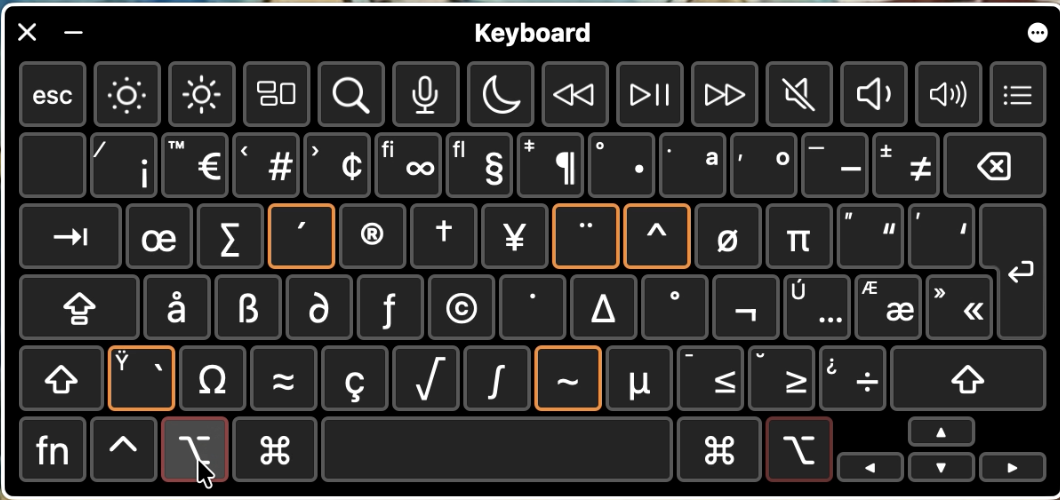
NOTE: You might have noticed that your keyboard has two Command keys as well as two Option keys, one at each side of the space bar. They perform the exact same actions, and are only placed like that for ergonomics and typing efficiency.
Control Key (Ctrl) ⌃
The control key is primarily reserved for contextual menus, secondary OS shortcuts and terminal commands. This one is mainly used by developers for Terminal use and for accessibility navigation.
NOTE: Remember, the control key on a Mac does not have the same use than in a Windows keyboard. Be aware of this when following tutorials online.
Function key (FN or Globe)
The Function key, which also doubles as the global key on all modern Macbooks is a hardware level toggle. This means that by pressing this key, you have access to controls from your system. You can see on the top of your keyboard that the function keys (F1, F2, etc) have other system functions attached to them, such as brigthness, volumme, spotlight, mission control, etc. Pressing the function key allows us to access the traditional function keys. If you want to know more about the FN + function keys behaviour, see this.
Useful accesibility tool:
If you use the command and option key more on one side than in the other, you can personalize specific developer tools to the ones you do not use as often and change their utility.
NOTE: To install 3rd party software on your machine, you need to have admin rigths to your machine, so if you are using the shared CCI machines, this is not an option.