
ROLI Airwave - Getting Started
This guide covers the initial setup required to use a ROLI Airwave device with third-party MIDI software.
Prerequisites
Ensure the following software is installed:
- loopMIDI
- ROLI Connect
1. Configure loopMIDI
Open loopMIDI and check the available MIDI ports.
You should have a virtual MIDI port named:
ROLI Airwave Expression
If this port does not exist:
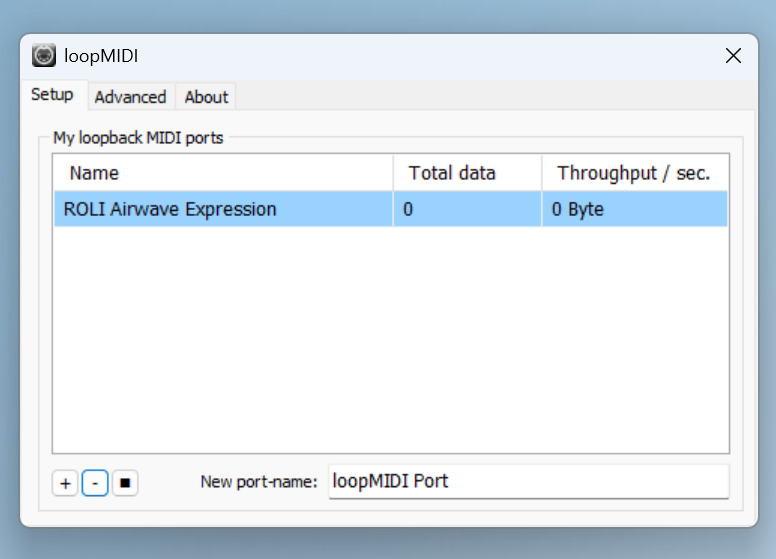
- Leave loopMIDI running in the background.
The Airwave software uses this virtual MIDI port to communicate with compatible applications.
2. Open ROLI Connect
Launch ROLI Connect.
ROLI Connect acts as the launcher and management application for the ROLI software suite.
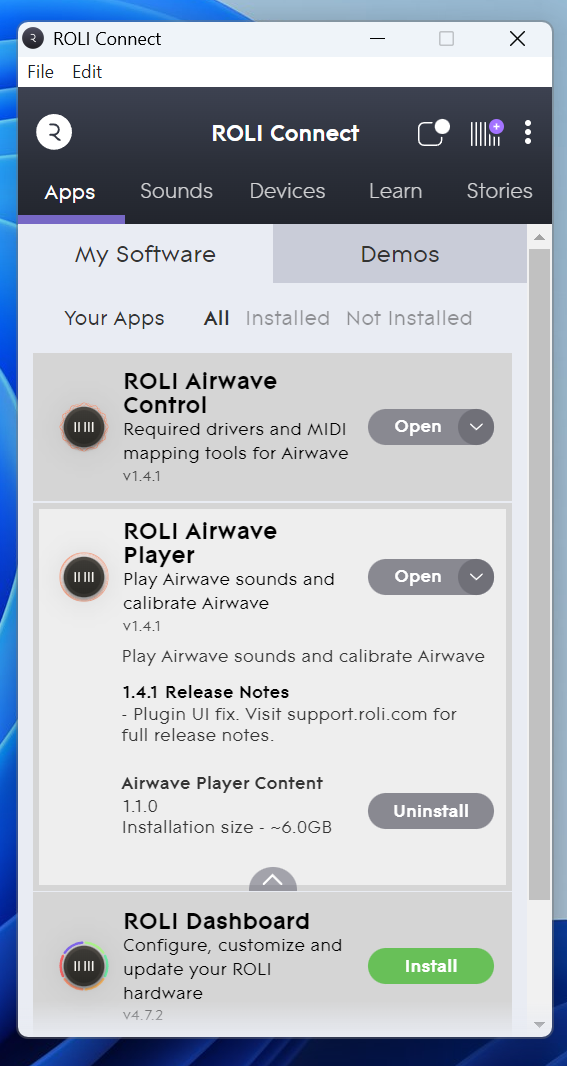
From here you can start:
- ROLI Airwave Control
- ROLI Airwave Player
- Other installed ROLI applications
3. Configure Airwave
From ROLI Connect, launch ROLI Airwave Control.
Check the device configuration.
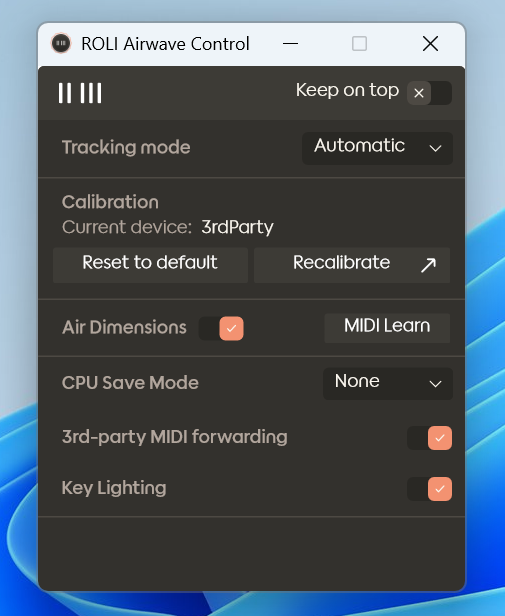
Device Recognition
Under Current Device, the Airwave should be detected as:
3rd Party
MIDI Forwarding
Ensure that:
3rd-party MIDI forwarding
is enabled.
This setting allows Airwave gestures and expression data to be sent to external MIDI applications.
4. Launch Airwave Player
Return to ROLI Connect and launch:
ROLI Airwave Player
Airwave Player should now receive data from the Airwave device via the configured MIDI routing - select the KL Essential61 mk3 and you're ready to calibrate the Airwave with the keyboard.
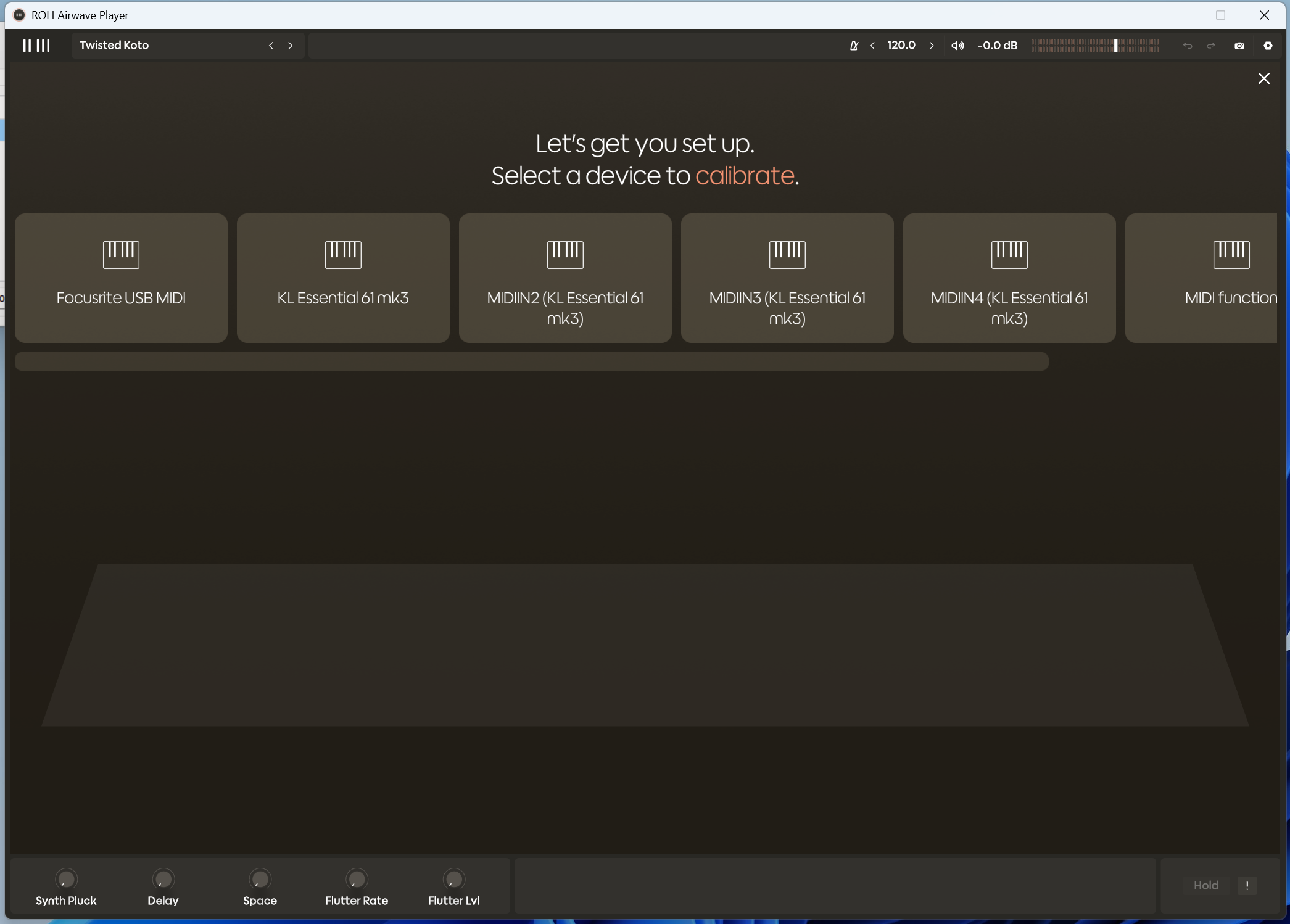
Once calibration is complete, you'll be able to play sounds on the keyboard from Airwave Player and use gesture control with the Airwave to change the parameters of the selected sound. Select different sounds using the menu at the top left of the page.
Troubleshooting
Airwave is not detected
- Check that the device is connected via USB.
- Restart ROLI Airwave Control.
- Reconnect the Airwave device.
No MIDI data appears in other software
- Confirm the ROLI Airwave Expression loopMIDI port exists.
- Verify 3rd-party MIDI forwarding is enabled.
- Restart loopMIDI and Airwave Control.
Airwave Player does not respond
- Confirm the Airwave device appears as 3rd Party in Airwave Control.
- Close and reopen Airwave Player.
- Reboot the computer if the device is not recognised.
Quick Checklist
- loopMIDI running
- "ROLI Airwave Expression" port created
- ROLI Connect open
- Airwave recognised as "3rd Party"
- 3rd-party MIDI forwarding enabled
- Airwave Player running
Show more lines One
Working on a response... Please wait.
Message Copilot
AI-generated content may be incorrect