
86" Touchscreen Display
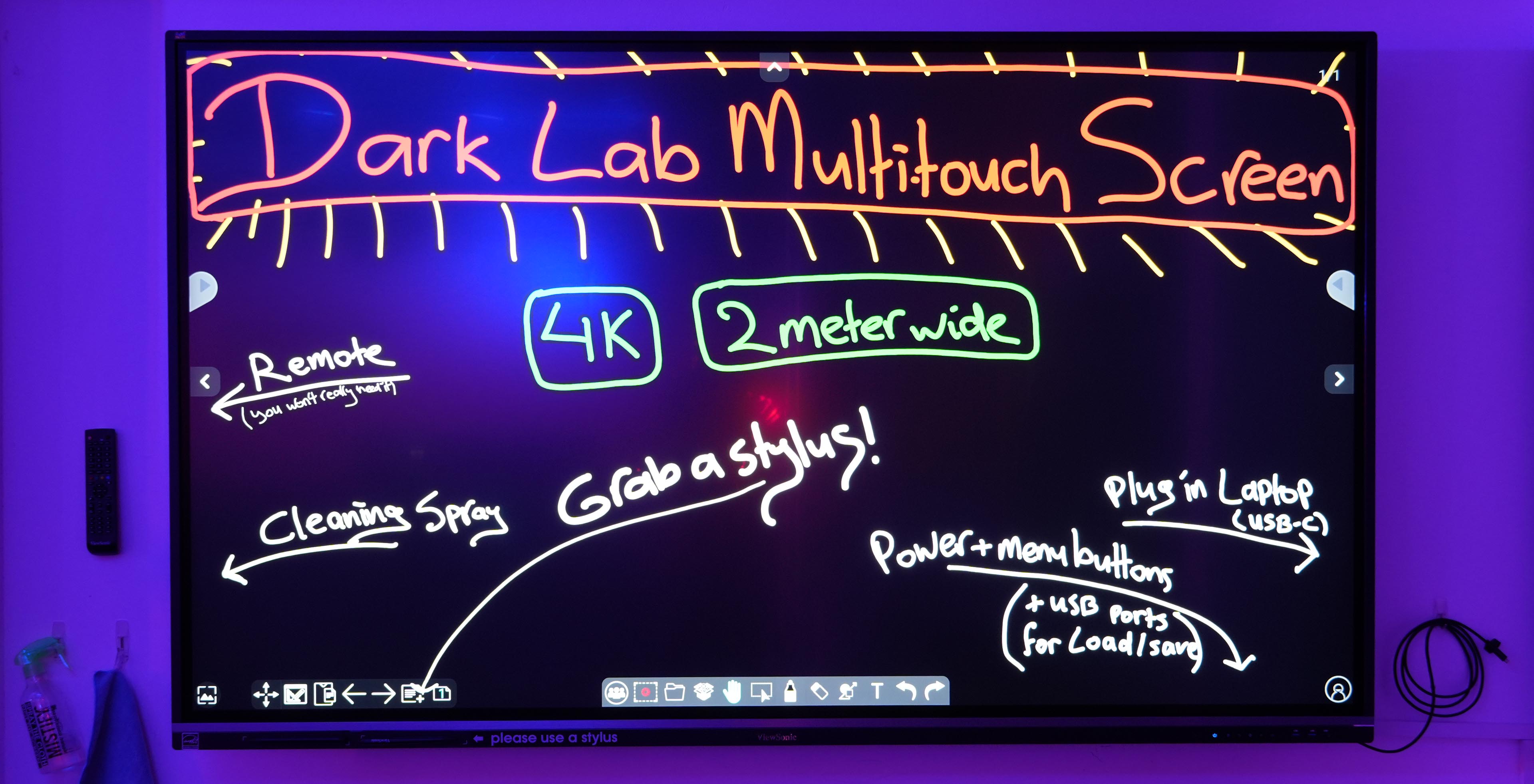
Viewsonic 86" 4K multi-touch display
The Dark Lab has been outfitted with a large, two meter wide multi-touch screen.
It has a built-in drawing app for sketching and (groupwise) ideation, but you can also plug in your computer and use it for touch-based interaction - or just as a big 4K monitor!
How to use it?
To use your own computer instead: just plug in the USB-C cable provided! This should work for both the video and touch data.
There is also a powerful Windows PC hooked up and ready to use.
You can develop touch-based visuals, games and art in e.g. Unity, TouchDesigner, Unreal Engine, P5.JS, etc..
All of these, and many other tools/languages, have built-in (multi)touch support.
Please use the stylus pens whenever you can, as it is a giant fingerprint magnet!
Feel free to use finger-based interaction - just use the micro-fiber cloth and screen cleaner spray when you are done (be gentle ;))
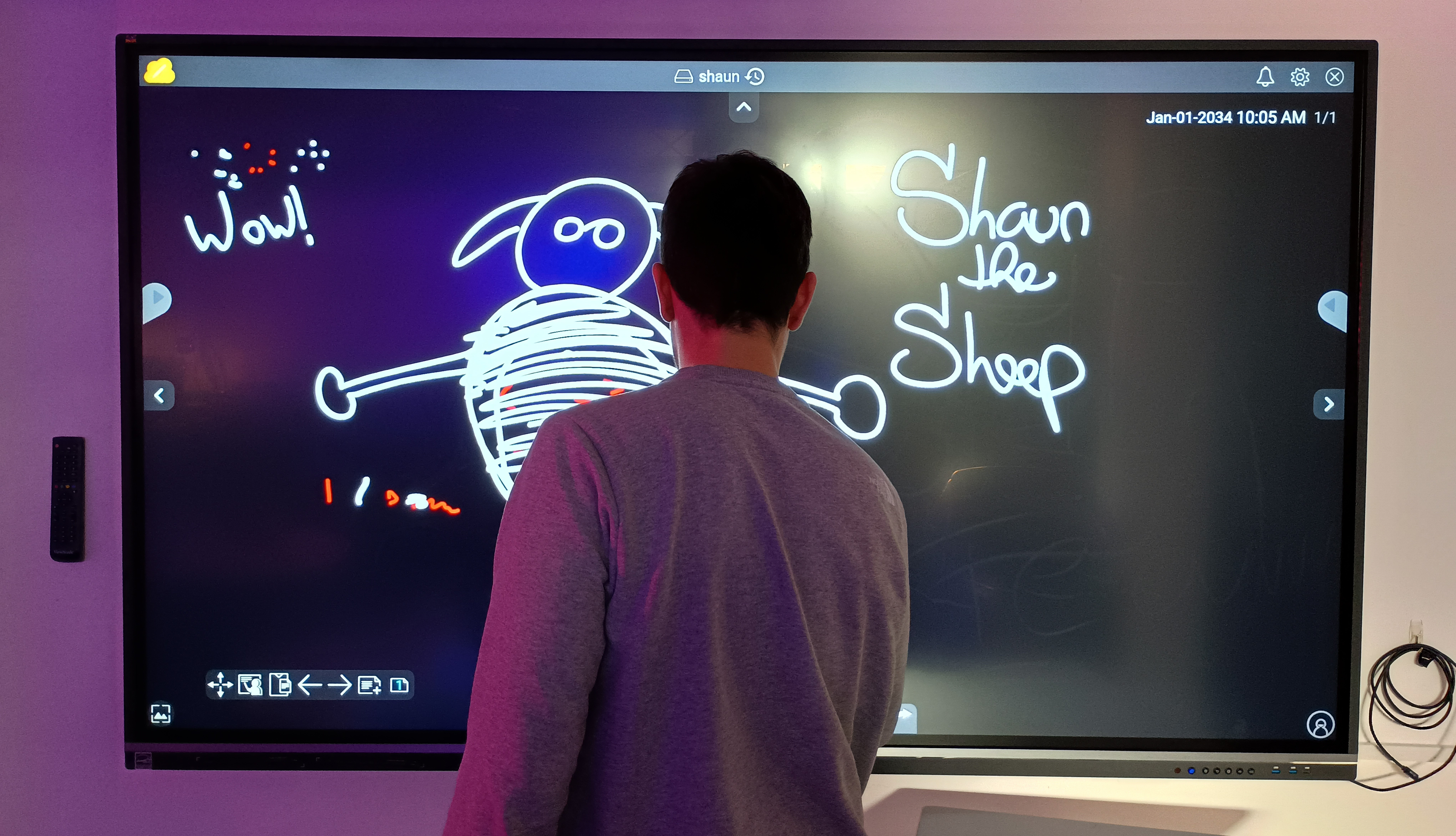
Using the built-in whiteboard
The Viewboard has very capable built-in whiteboard functionality. It's vector-based, 'non-destructive' (i.e. you can change edits later on), with infinite canvas plus a bunch of neat functions.
The styluses have a sharp pointed side and a blunt side. The touch board can tell the difference, and will let you assign different colors depending on which side you used to touch the color pallette.
For some nice videos about its other whiteboard functions see here:
Viewsonic 'Basic Whiteboarding' how-to videos
You can load / save your sketches onto a memory stick or hard drive by plugging it into the USB ports on the front of the device.
In the whiteboard app or home screen, tap the folder-shaped icon to bring up the options for saving and loading files.
Although you can store files on the device itself, DO NOT store anything personal/sensitive that you do not want others to see!!
For more information:
The 'Viewsonic Education North America' YouTube channel has loads of other how-to videos, in case you ever get stuck on anything - including how to use it with Windows and MacOS.
Developing your own touch-based apps
The screen will work with any software that supports touch-interaction.
If you want to make you own software/games/art, you can!
Unity:
Open up the package manager, search for the Input System, click it, then check the area under the description.
There should be some code samples there, including the ‘Touch Samples’. You can import them straight from that menu.
You can use the Input Debugger in Unity to make sure that touch input is working at all, before doing any coding!
Open the Input Debugger by selecting from the top menu dropdown:
Window > Analysis > Input Debugger.
See here for more information: https://learn.unity.com/tutorial/touch-input-for-mobile-scripting
TouchDesigner
Double-click the empty background, or hit 'TAB' to bring up TouchDesigner's collection of operators.
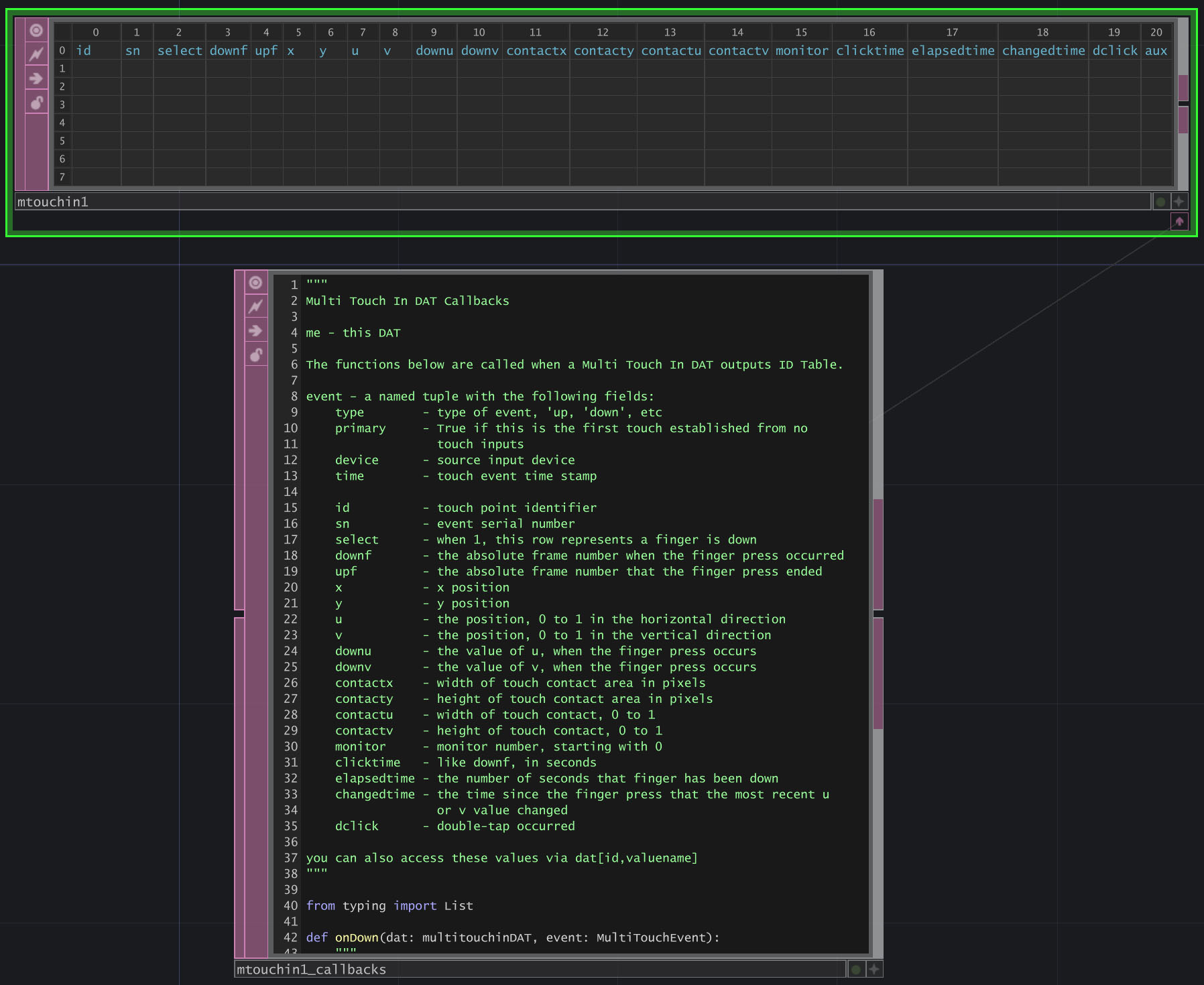
Select 'Multi Touch In' in the DAT operators (pink) tab.
You should now see a table where all of your touch inputs will appear.
https://derivative.ca/UserGuide/Multi_Touch_In_DAT <- explains what the various values mean (id, sn, x, y, u, v, etc.)
https://derivative.ca/UserGuide/MultiTouch
You will also see a 'callbacks' code block, where you can (optionally!) script your own Python actions.
Here is a tutorial on using TouchDesigner callbacks:
https://learn.derivative.ca/courses/100-fundamentals/lessons/107-dats-scripting-python/topic/scripting-events-with-callbacks/
P5.JS
P5 also has built-in support for touch devices. See here for more info!
https://p5js.org/reference/p5/touches/
https://github.com/L05/p5.touchgui