
Getting Started with Git and GitHub
What Does Git Do?
Git is a version control system. It lets you snapshot a set of files and store a definitive copy remotely on a network server. It keeps track of every snapshot ("version") that you create, so you can always go back to old versions or recover accidentally deleted files. You can create speculative "branches" to try out alterations to your files, switching back to your main branch when you need to. And it lets several people work at once on the same set of files, merging changes (when it can, which is: usually) to keep a consistent up-to-date version.
Those "several people" might all be you, working on several computers at once (say, one at work and one at home). You can work on both machines, and so long as the changes don't become too drastic, Git will keep everything in sync. If clashes occur and a merge fails, Git provides some support to deal with the situation.
(In general, Git is really good at merging changes if you're working with code, has a fair stab for other text files, but can't merge other types of files.)
Many classes in the CCI will either require or encourage you to use Git and GitHub in your work. These can be complex and confusing at first, and how you use them depends a bit on what you need to do.
Git vs GitHub
The first distinction that's normally quite important to make is that Git and GitHub are related but different things.
Git is a piece of software that lives on your computer. It is used for saving versions of files that you are working on -- this is called 'version control'. Git is used on one folder at a time -- a folder that is being versioned with Git (and any subfolders inside it) is called a Git repository. There are many different ways to use this software -- one of these is the command line.

GitHub is a website online. It's used to share Git repositories, and has a bunch of tools to allow people to collaborate on code. It's not the only website people use to do this, but it's the main one and it's very popular.

What about GitHub Desktop and git.arts.ac.uk?
GitHub Desktop is a piece of software you can use to manage Git repositories on your computer. It's by no means the only way to do this -- Visual Studio Code also has tools for managing Git repositories, and some people use Git from the command line (which offers more options than VS Code). It's a way of using Git that is graphical rather than text-based.

git.arts.ac.uk is a version of the GitHub website that is managed by the CCI. It is often used for classes, as it allows CCI students (but not anyone else) to access the files. If you have a GitHub account, it will not work with git.arts.ac.uk (you need to use your UAL account instead), but otherwise repositories will work the same (e.g. GitHub Desktop and the command line will still work).
There is no reason why a local Git repo cannot be synchronised with more than one remote location at a time (e.g. GitHub and git.arts.ac.uk), and it's easy to move a repo from one server to another if you need to.
...and GitHub Pages?
GitHub Pages is a web hosting service run by github.com, that allows you to turn a repository containing web-compatible code into a website. The website will update when you update the files in the Git repository. This doesn't happen automatically -- if you want a GitHub Pages site you need to approve this in settings.
SUMMARY
- GitHub Desktop does the same job as using Git from the command line (as does VS Code's Git support) -- it runs locally on your computer and allows you to both version files, and pull repositories from online.
- GitHub and
git.arts.ac.ukare both websites that people use to share and collaborate on Git repositories.
What is a Repository?
A Git repository is a folder full of files that are being versioned using Git. Tools like GitHub are used to share these repositories! Each Git repository you have should have its own folder, although it can contain sub-folders.
There are lots of ways of checking whether a folder is a Git repository:
-
Git stores the repository information, and the entire change history, in a sub-folder called
.git. This file might be hidden from view: on a Mac, you can typels -ato see it, or typeShift-Cmd-.in the Finder. -
Type
git statusin the terminal: if you get an error likenot a git repositorythen you are not in a repository. If you get some git branch information printed out, then you are. (Git commands will work in any sub-folder inside a repository; Git looks "up the tree" to find the top folder.)
How Should I Use Git?
The core thing that Git and GitHub are used for is keeping track of a changing set of files. How you use these tools can depend on whose files they are! If you are making changes to your teacher's files, that's going to work differently to working on files that just belong to you.
Below are some common use cases.
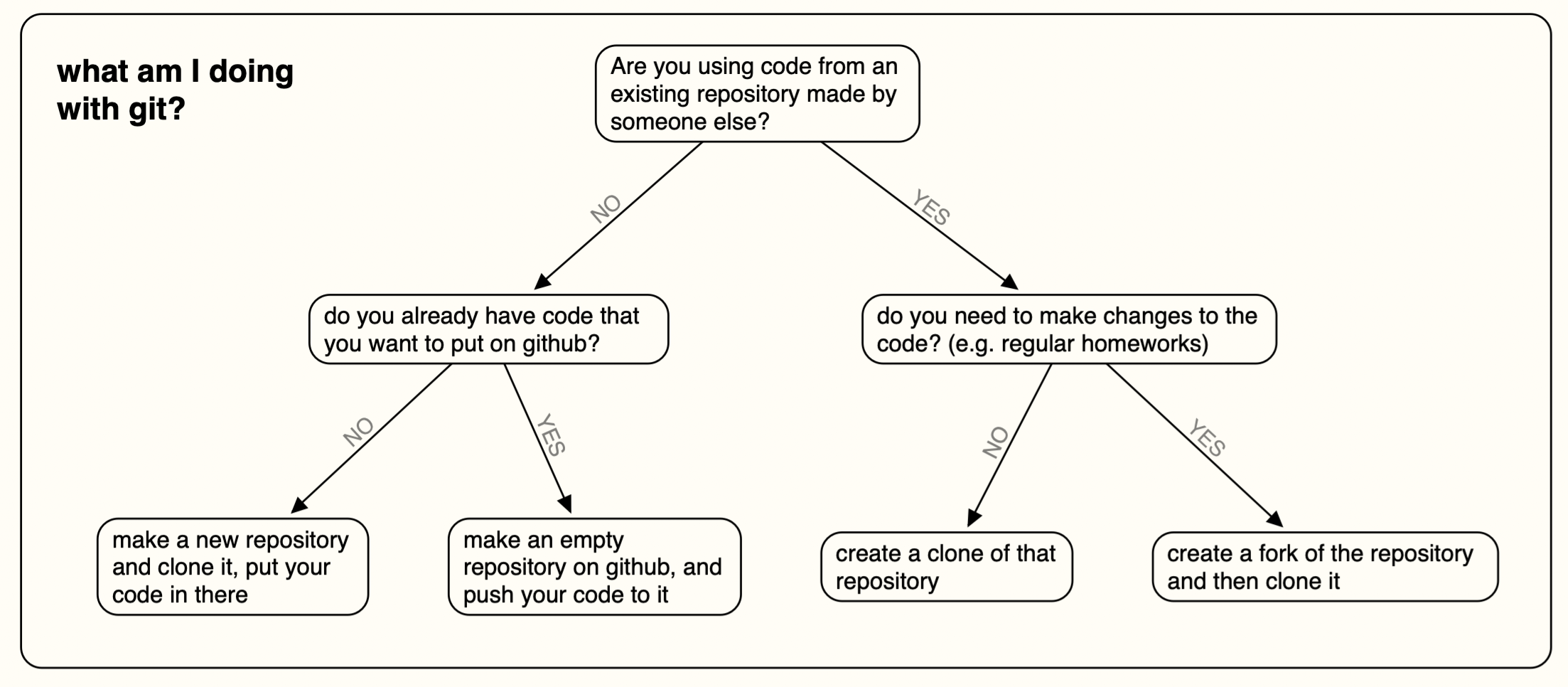
At each of these points, you should end up with 2 things -- a local repository on your computer, that you can edit and run, and a remote repository on GitHub (or git.arts.ac.uk). These things will be related, and if you own the remote repository, you should be able to push to it.
Git setup
If you want to use Git from the command line, there are a couple of extra setup steps, including making an SSH key. If you plan to use Git for many projects, or learn how to use Git professionally, this is a good idea. There are instructions for this process here.
If you are just getting started, or only want to use Git for a one-off, you can follow these instructions to set up and configure GitHub Desktop.
Make a new Git repository online
Follow these instructions to create a new Git repository and clone it locally.
Push existing code to an empty Git repository
If you have some code that you wish to publish on GitHub, the steps are as follows:
- make an empty Git repository online (this is the remote!) -> do this by following the steps above, but make sure you do not create a README or any other files.
- initialise your code as a Git repository (this is local)
- link the remote repository to your local repository
- push your local files to the online repository
There is a full run-down of these instructions here.
Cloning a Git repository
This is for when you want a copy of someone's code, and you might want to edit it, but you don't need to publish the changes that you have made. This is quite a common way to test out other peoples' scripts and tools. It's simpler than forking as you are just making a copy.
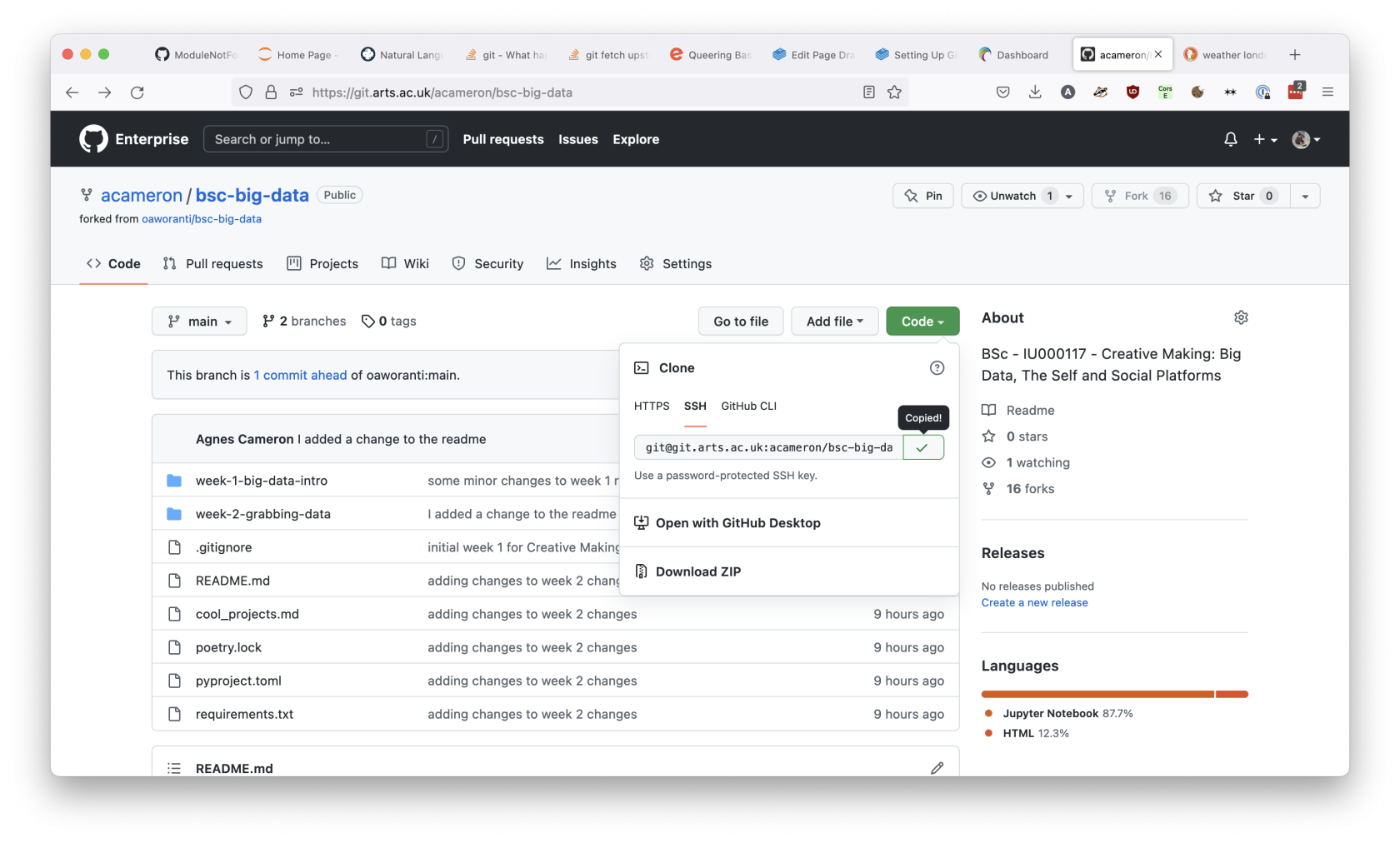
You can clone repositories either using the command line:
Get the url of the repository from the green 'code' button to the right of the repository's page.
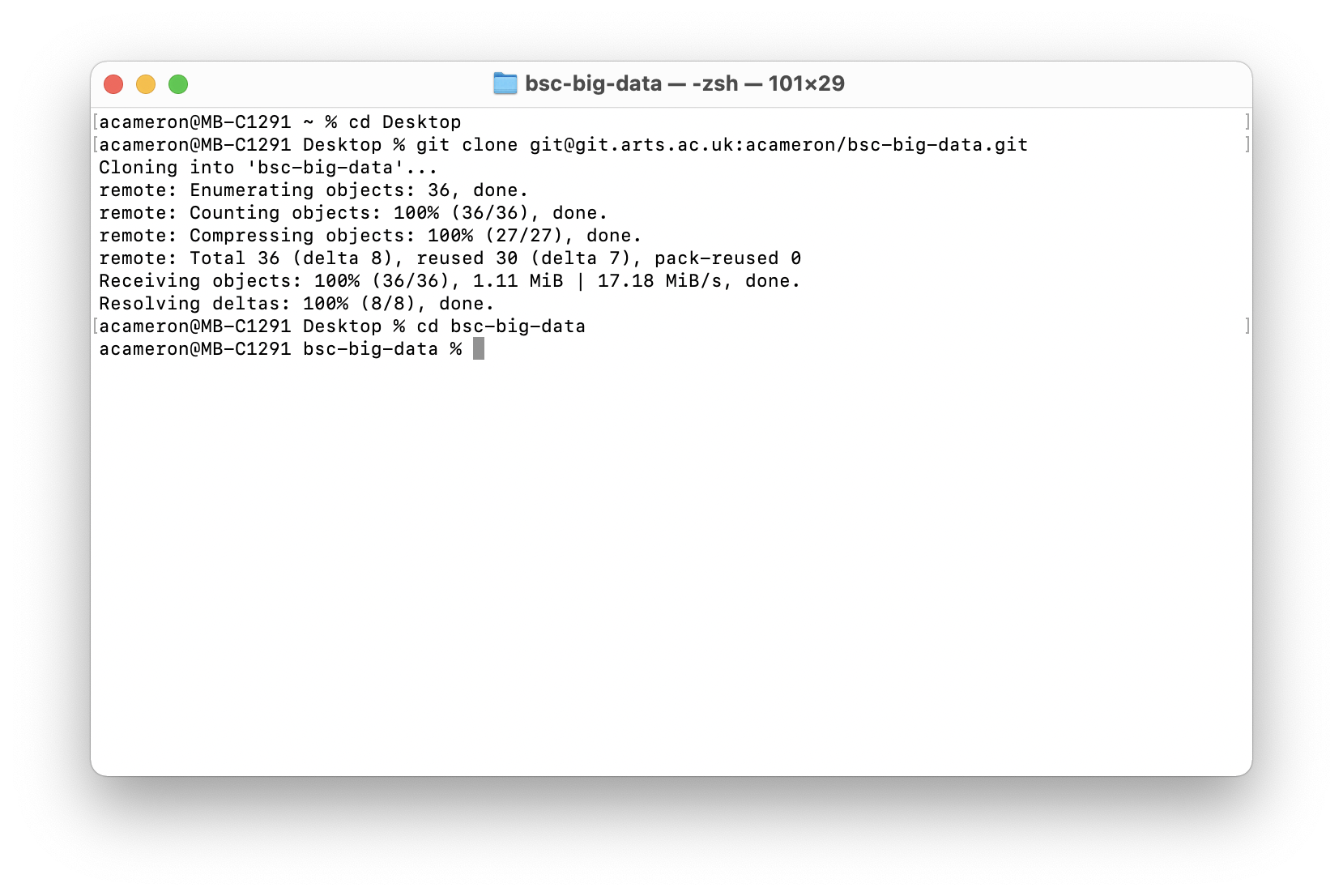
cd where/you/want/repo
git clone git@git.arts.ac.uk:yourname/repo-name.git
cd repo-name
Making a fork of a Git repository
This is something you will want to do if you need to make and version changes to someone else's code. It's a really common thing to do for classes that require a code-based homework each week. I wrote a longer guide to doing this here that uses the command line -- there's also a tutorial here for doing the same thing with GitHub Desktop.