
Python with Miniconda (Install)
Installing Miniconda
Please be mindful that Miniconda has no user interface and only offers the conda prompt and Python. It also requires general knowledge of how the terminal works.
Graphical installer:
macOS
(To check the version of hardware you have, Apple Silicon, or Intel, you can check here)
You must download the Miniconda installer from the official page (https://docs.anaconda.com/free/miniconda/). From here, you can choose the Intel or the M1/2/3 chip version and the bash or pkg versions. We strongly recommend using the bash version since the pkg may skip the "Destination select" process, failing the installation.
bash
Download the .sh installer by opening a terminal and running one of the following commands (depending on your macOS architecture, check before if you need Apple Silicon or Intel):
- Apple Silicon:
curl -O https://repo.anaconda.com/miniconda/Miniconda3-latest-MacOSX-arm64.sh - Intel:
curl -O https://repo.anaconda.com/miniconda/Miniconda3-latest-MacOSX-x86_64.sh
NOTE: Please remember, is either one or the other, not both.
Next, you need to install it by running the following:
- Apple Silicon:
bash ~/Miniconda3-latest-MacOSX-arm64.sh - Intel:
bash ~/Miniconda3-latest-MacOSX-x86_64.sh
You wil see a window like this one:
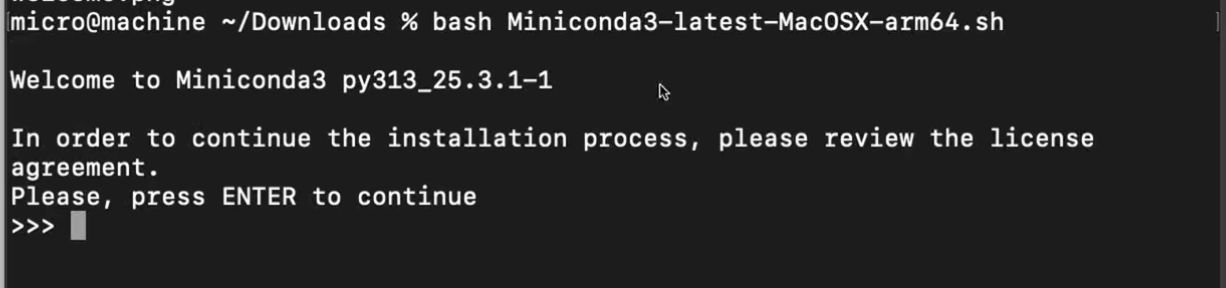
You need to clic enter until you reach the end of the Miniconda End User License Agreement. You will see something like this:
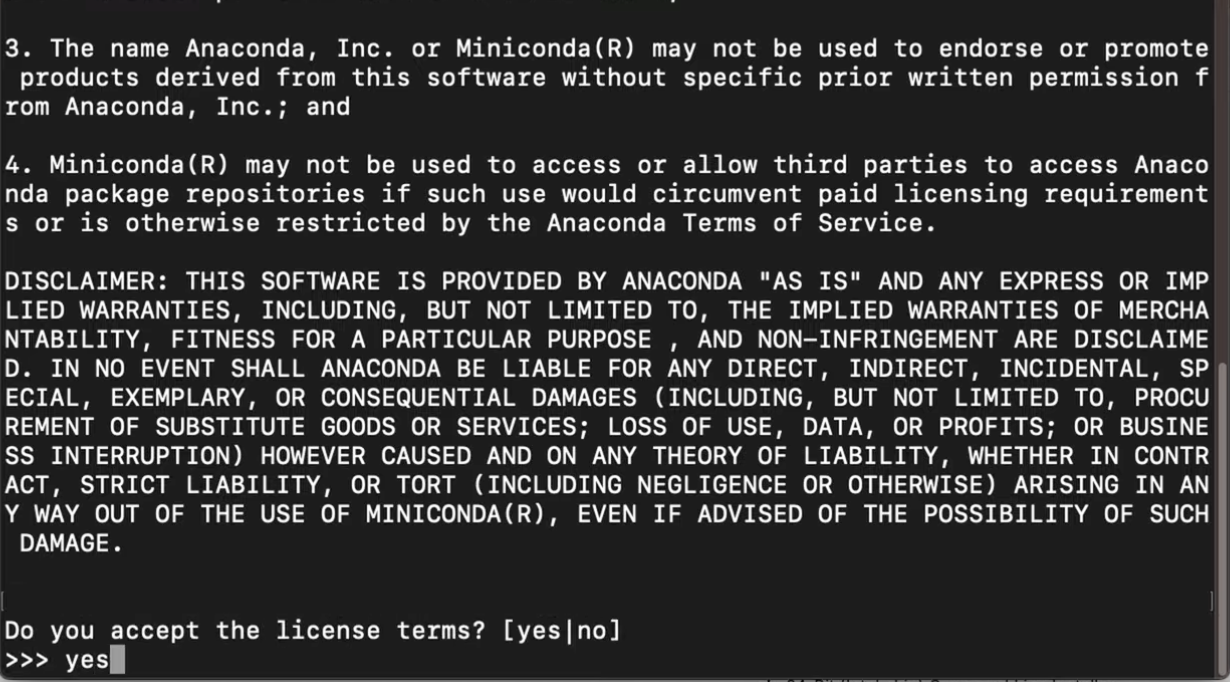
You have to accept this license terms to continue the installation, so just type yes to this part. Once you clic Enter its going to start the installation. The next input should look like this:
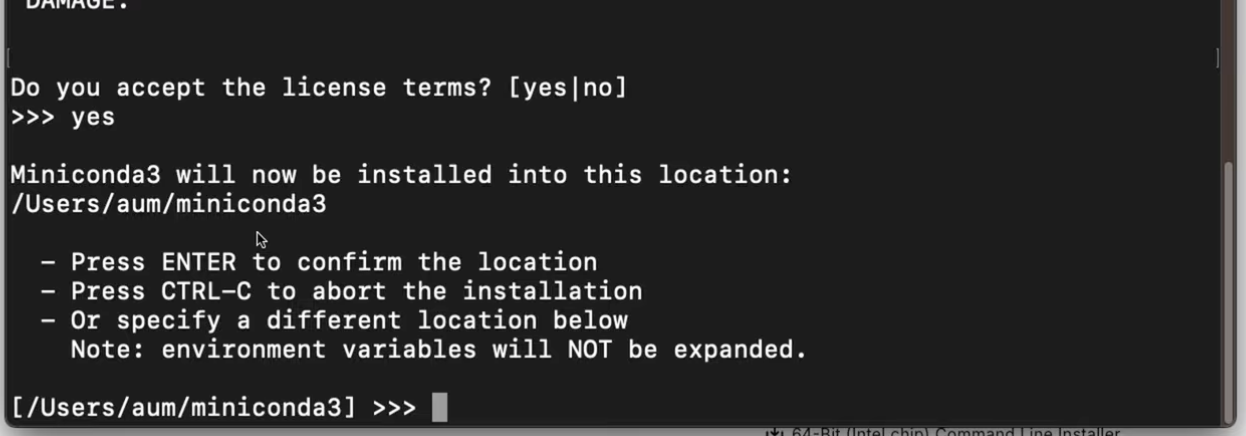
Where the installer lets you select the main folder where the miniconda package is going to be saved. The default path is recommended at this point, so you can just clic Enter. In the example image, you might see something a bit different, but if you dont want the package to be installed in that path, you can change it here, before clicking Enter again to continue.
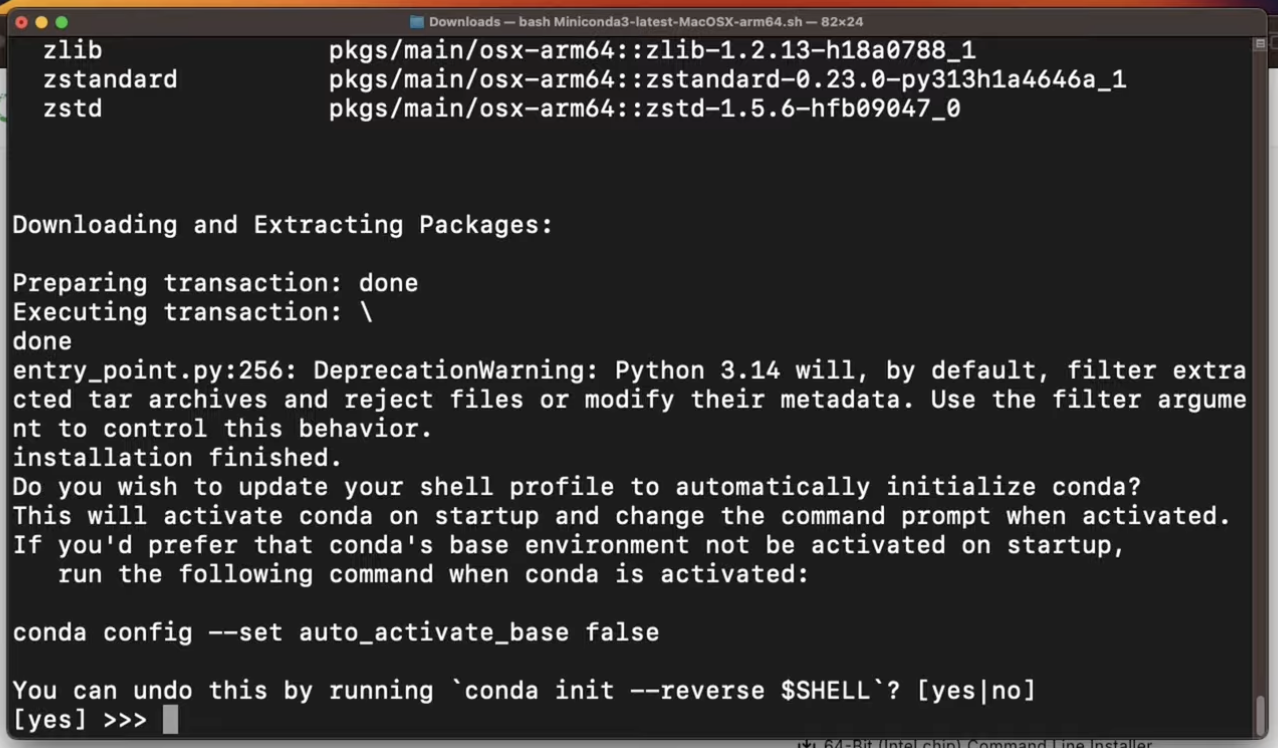
In this last prompt, you can just clic Enter and finally, close the terminal with Command+q. Once you open it again, you can test the conda command.
Windows
For Windows, you can just download the .exe file and run it. In case you want to install it directly from the command line, you can run the following code:
If your computer is not 64-bit, you can look into miniconda archive installs. Just keep in mind that older versions are not compatible with newer versions of Python, and will limit the amount of new libraries you can use.
curl https://repo.anaconda.com/miniconda/Miniconda3-latest-Windows-x86_64.exe -o miniconda.exe
The curl command allows the terminal to exchange data directly from another server, in this case, it is making an HTTP request, just like a web browser. If the request fails, make sure that your internet connection is stable. Once the download is complete, type:
start /wait "" miniconda.exe /S
This will start the installation process. Afterward, you can run del miniconda.exe to delete the executable file.
After installing, close the terminal and open the "Anaconda Prompt (miniconda3)" to use miniconda.