
Anaconda not on CCI machine
All CCI machines should have Anaconda pre installed. Once you log in to one of our machines with your credentials, you can check if Anaconda is already there by going to the terminal (Mackbook) or Command line (Windows). In this page we show you how to check if anaconda is working, or reinstall in case it is not.
Macbook
Once you are logged into a Macbook, you can type Command + Space bar and use the search bar to find the application Terminal. Another option, is going to the Finder and look for the application there.
Once its open you should see something like this:
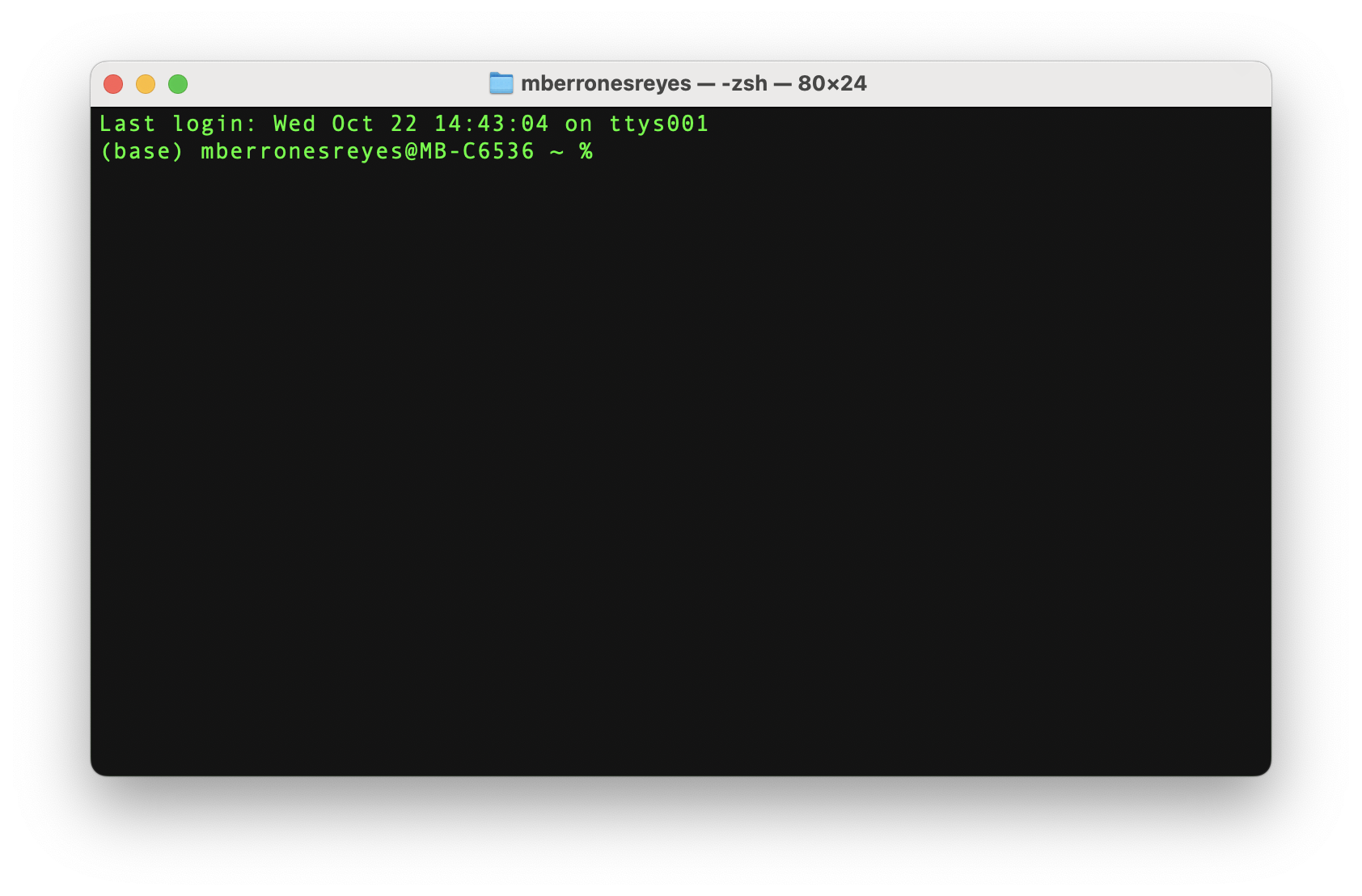
You can see there in the image that, before the user name we have a little parenthesis where it says (base) which means that you do have Anaconda installed. If conda works but doesn't show (base) in the terminal prompt, it means the base environment is not automatically activated upon shell startup.
If you type in the Terminal conda and click Enter it should show something like this:
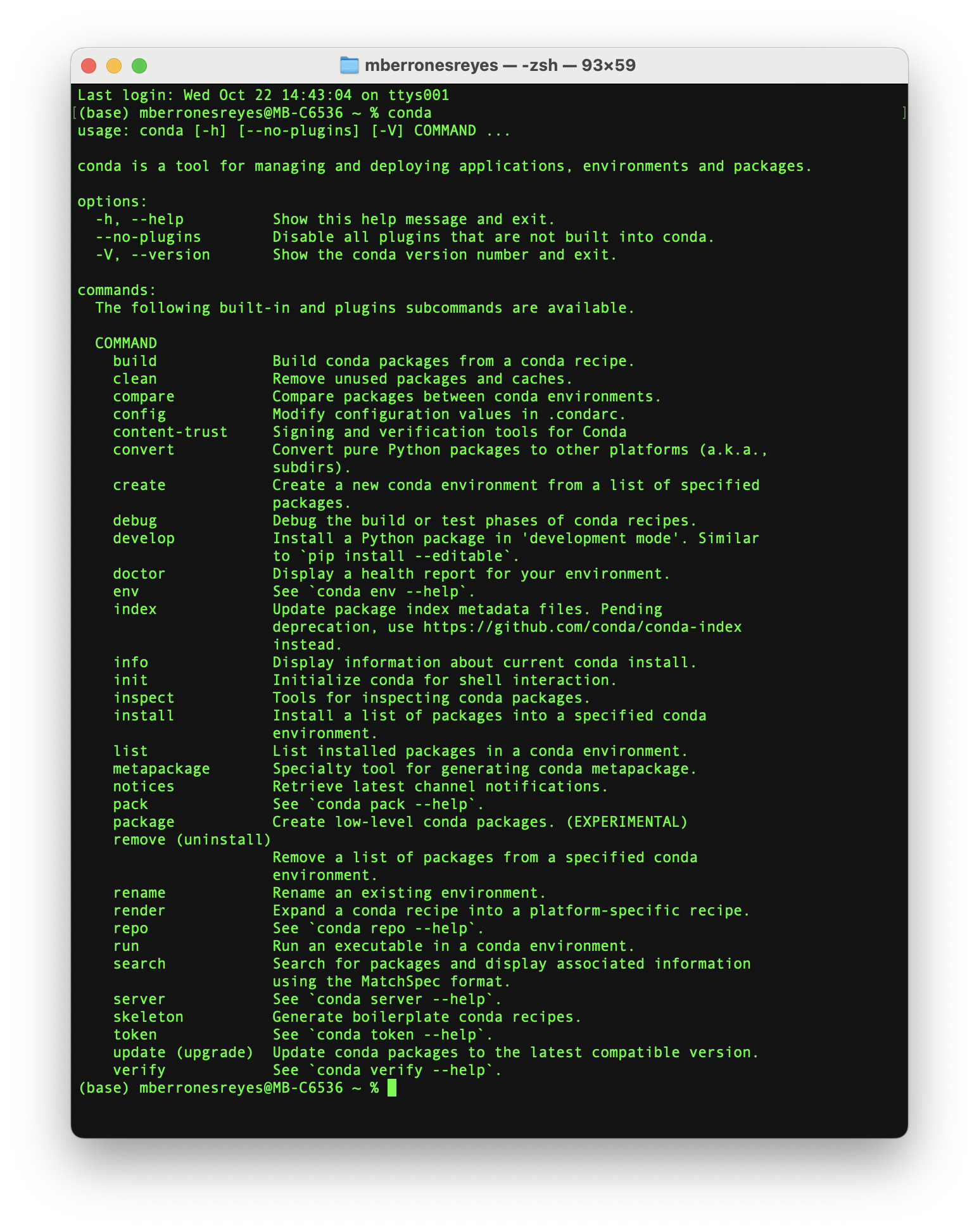
If this works, then you can start working with conda. If not, follow the next steps:
Type Command + Space bar and use the search bar to find the application Self Service. For some reason, there are two version on self service en Mac, just make sure to select the correct one:
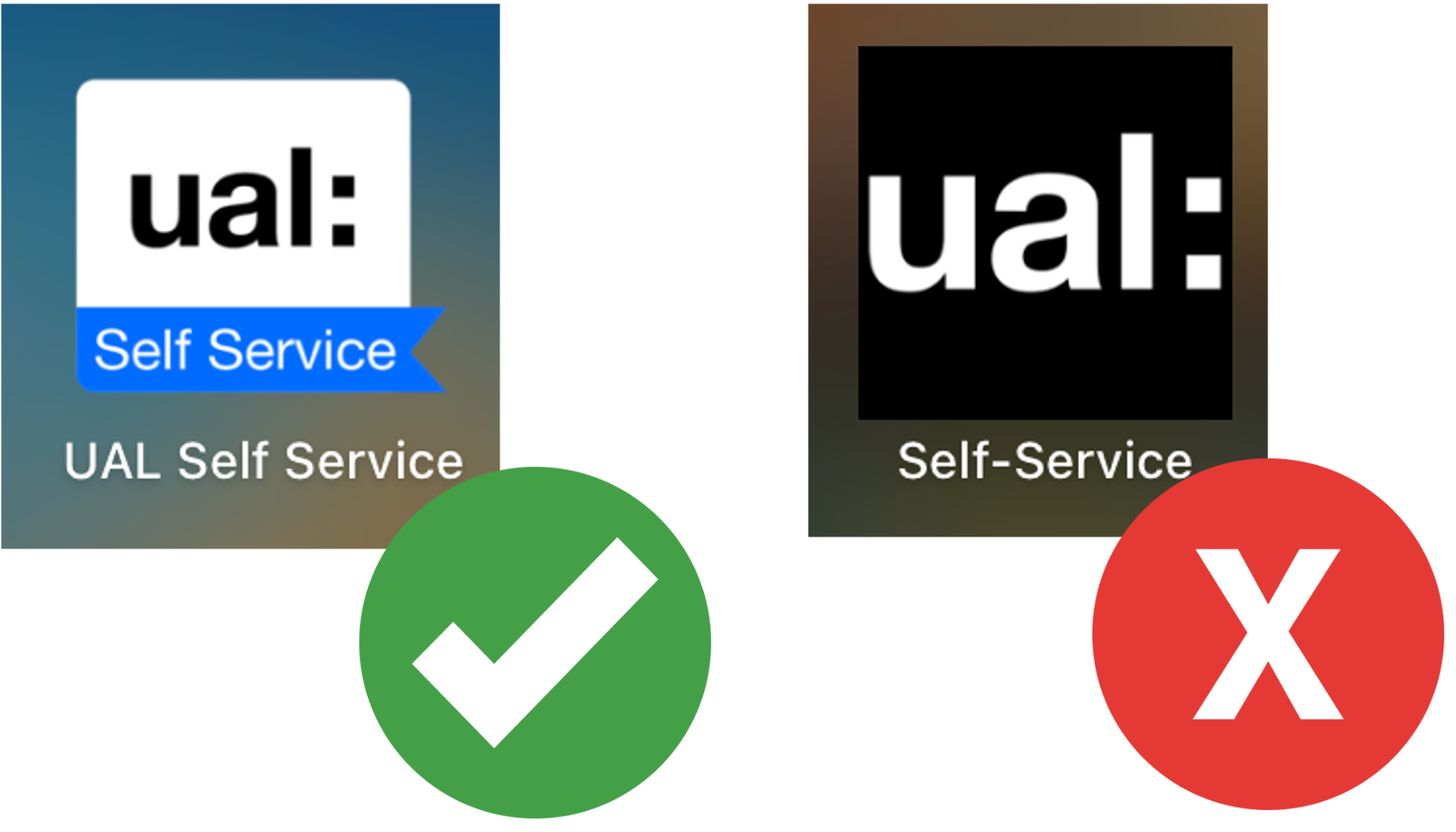
Once you are in the correct one, you can go search for the Anaconda application in the search bar.
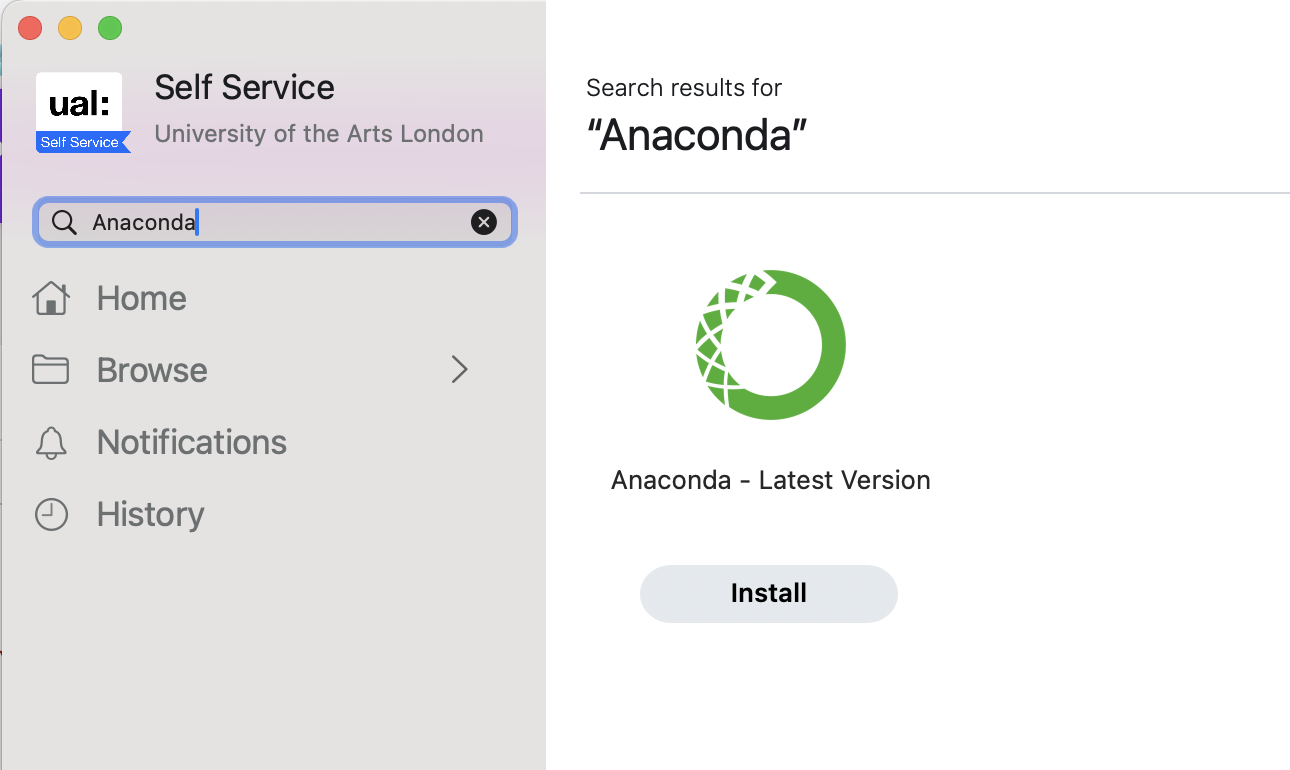
It can either say something like Install or Reinstall in the button under it. Once you clic it, it should take about 5 to 10 minutes to install. Do not close the window until the progress bar is done loading.
Once this is done, restart the application for the Terminal and once you load it back up, it should show the (base) tag. If this is not working, please contact a technician.